

Why This Matters to SMBs (Especially in NYC)
Modern work moves between offices, home, client sites, and shared spaces
Laptops that can charge from a cellphone-style USB‑C charger reduce friction for hybrid teams. When your staff can borrow a compatible charger, use a docking monitor’s USB‑C cable, or plug into a compact travel adapter, they’re less likely to lose hours to a dead battery.
Standardized charging is a small change with big operational impact
Charging standardization can simplify procurement, reduce “missing charger” tickets, and make it easier to keep spares on hand. For NYC businesses where commutes, meetings, and coworking environments are common, that convenience can translate into fewer disruptions.
What “Charge a Laptop With a Phone Charger” Actually Means
It usually means USB‑C charging, not “any” phone charger
This is primarily about USB‑C chargers that support USB‑PD, the charging standard that negotiates voltage and current between the charger and device. Older USB‑A phone chargers might technically provide power, but most laptops won’t accept them for charging.
The laptop must be designed to accept power over USB‑C
Some laptops have USB‑C ports that are data-only; others are fully capable of charging. In practice, business-class ultrabooks are more likely to support USB‑C charging than older or gaming-class devices with high power draw.
How USB‑C Power Delivery Works (In Business Terms)
The USB-IF’s USB Power Delivery charger guidance explains charger certification and power capabilities. Compare the charger’s supported output with the laptop manufacturer’s requirements, rather than relying on connector shape alone.
The charger and laptop negotiate power like a contract
USB‑PD is a “handshake” protocol: the laptop requests a power profile and the charger offers what it can safely deliver. If there’s a match, the laptop charges; if not, it falls back to a lower level or refuses.
Wattage is the real limiter, not the plug shape
A small USB‑C phone charger might be 20W–30W, which is often not enough for a laptop under load. Many business laptops prefer 45W, 65W, or 90W+, especially when running video calls, external displays, or encryption-heavy workloads.
The cable matters more than most people think
USB‑C cables are not all equal: some are “charge-only,” some are limited to lower wattage, and some are designed for 100W or more. If the cable can’t handle the negotiated power, the system will throttle charging or fail to charge.

Why NYC Businesses Should Care Beyond Convenience
Fewer single points of failure during travel and client work
When a laptop depends on a proprietary barrel charger, losing it can stop work until a replacement arrives. USB‑C charging increases your odds of finding a compatible power source quickly—at another office, a colleague’s desk, or from your standard spare kit.
Cleaner desks, fewer SKUs, simpler onboarding
Standardizing on USB‑C (where feasible) reduces the number of charger types your team needs. That can lower “day one” setup issues for new hires and makes it easier to keep standardized spares in a supply cabinet.
Better alignment with docking, conference rooms, and hot desks
Many modern monitors and docks provide power over USB‑C while also carrying video and data. In shared workspaces, a single USB‑C cable that connects power, display, keyboard/mouse, and network can reduce cable clutter and speed up room turnover.
What to Look For in a Laptop That Can Charge This Way
Confirm USB‑C charging support in the specs
Look for language like “USB‑C Power Delivery,” “charge via USB‑C,” or a charging icon next to the port. If you’re buying for a fleet, validate it on the exact configuration you’ll deploy (some lines vary by model year and CPU class).
Match typical workload to appropriate wattage
If your staff mostly uses browser apps and office productivity tools, a 45W–65W USB‑C charger may be enough. For heavier multitasking, multiple external displays, or intensive apps, plan around 65W–100W to avoid battery drain while plugged in.
Consider battery health and serviceability
Frequent “always-on” use with underpowered charging can increase battery cycling, which can shorten battery lifespan over time. For SMB fleets, choose models with strong power management features and practical warranty options that fit your replacement cadence.
A Practical Way to Roll This Out: Step-by-Step
Use the USB-IF certified product search to check certification claims while selecting accessories. Certification does not replace confirming the required power rating and testing the complete laptop, charger, and cable combination.
Step 1: Inventory what you have (and what actually charges over USB‑C)
Start by listing laptop models, their charging types (USB‑C vs proprietary), and the wattage of existing adapters. Identify which devices support USB‑PD and note any departments with higher-power needs (design, engineering, exec travel, etc.).
Step 2: Standardize charger tiers and label them clearly
Pick a small set of approved chargers (for example, 45W for light devices, 65W general-purpose, 100W for higher-end laptops). Use simple labeling so employees can self-select the right charger without guesswork.
Step 3: Validate in real-world conditions, then document
Test charging while the laptop is on a video call, connected to an external display, and running typical apps. Document “known-good” charger and cable combinations in your IT runbook so issues can be diagnosed quickly.
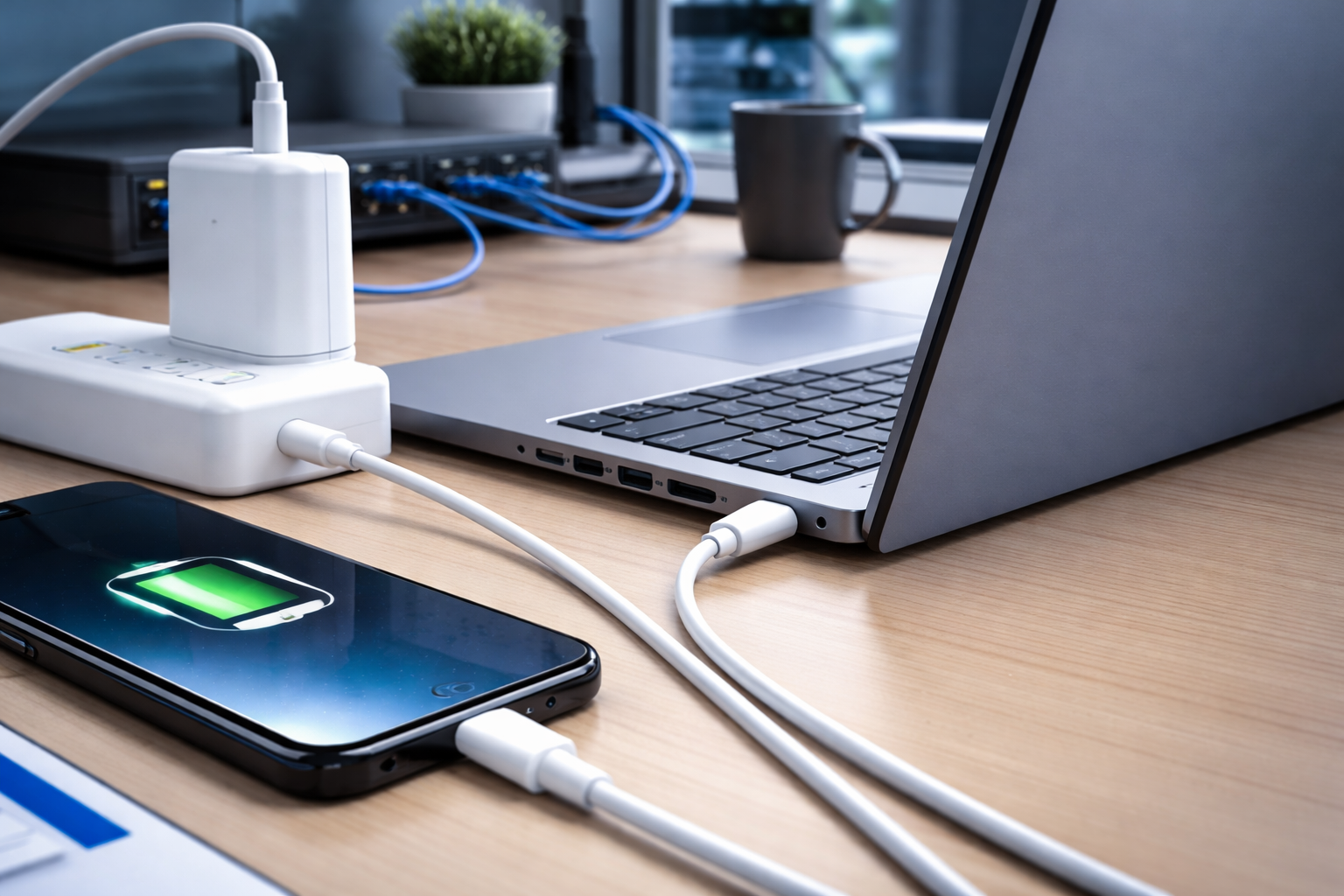
Real-World Scenarios Where USB‑C Charging Helps (and Where It Doesn’t)
Helps: Emergency charging and business continuity moments
If an employee forgets a charger on a day packed with meetings, USB‑C compatibility can be the difference between finishing the day and losing momentum. It also helps when you’re temporarily working from another location and need a minimal setup.
Helps: Conference rooms and shared spaces with single-cable setups
A USB‑C monitor that delivers power can turn any desk into a plug-and-play station. That reduces setup time and wear-and-tear on ports from constantly swapping multiple cables.
Doesn’t help as much: High-performance laptops and specialized workflows
Some powerful laptops require more wattage than common USB‑C chargers provide, or they may support USB‑C charging only when powered off or lightly loaded. For those roles, keep the manufacturer adapter in the standard kit and treat USB‑C charging as a backup.
Policy Considerations for Managed IT Teams
Standardization reduces tickets, but only with clear rules
If you allow “any USB‑C charger,” you’ll see inconsistent performance and hard-to-troubleshoot complaints. A short approved-hardware list with specific wattage and cable requirements prevents a lot of downtime.
Security and safety should be part of the conversation
Cheap, off-brand chargers can be unreliable, and failure modes can include overheating or unstable power delivery. For business use, it’s worth standardizing on reputable models and validating them for safety and longevity.

Key Takeaways
- Laptop charging from a “phone charger” works when both devices support USB‑C Power Delivery and the charger provides enough wattage.
- Wattage and cable rating are the most common causes of slow charging or battery drain while plugged in.
- Standardizing a few charger tiers can reduce downtime, simplify spares, and make hot desks and conference rooms easier to use.
- Some high-performance laptops still need their manufacturer adapters; USB‑C may be best as a backup.
Frequently Asked Questions
Can I damage a laptop by using a phone charger?
Usually, no—USB‑PD devices negotiate safe power levels. The more common issue is inadequate power, which leads to slow charging or battery drain under load. Use approved, reputable chargers and properly rated cables.
Why does my laptop say “plugged in, not charging” or charge very slowly?
Most often, the charger wattage is too low for what the laptop is doing, or the cable can’t support the needed power. Try a higher-wattage USB‑C charger and a cable rated for that wattage.
Do all USB‑C ports on a laptop support charging?
No. Many laptops have multiple USB‑C ports, but only certain ports accept power input. Check for a charging icon near the port and confirm in the device documentation.
Is USB‑C charging enough for docking stations and external monitors?
It can be, as long as the dock/monitor provides sufficient power for your laptop model and workload. For heavier setups (multiple displays, high CPU load), you may need a higher-wattage dock or a dedicated power adapter.
Should my business standardize on USB‑C charging right now?
If your laptop refresh cycle is upcoming, it’s a good time to prioritize USB‑C charging support and align it with your docking and conference room plans. If your fleet is mixed, start with a small set of approved chargers and target standardization over time.
Take the Next Step
Make charging reliable, standardized, and supportable
If you want fewer power-related interruptions and a cleaner, easier-to-manage laptop fleet, we can help you evaluate your current devices, define charger standards, and align docking/conference room setups with your day-to-day workflows.
Consultation CTA
Reach out to Your Expert Tech to review your laptop fleet and build a practical USB‑C charging and docking standard that fits your business operations in NYC—without overbuying or creating new support headaches.