

Why this “small habit” matters in a Manhattan workweek
The NYC reality: nonstop usage, nonstop context switching
In Manhattan and across New York City, business computers often run from early meetings to late client follow-ups without real downtime. Laptops sleep between conference rooms, desktops stay logged in for shared workflows, and everyone juggles browser tabs, Teams/Slack, cloud apps, and line-of-business tools.
A weekly restart sounds basic, but it’s one of the most effective low-effort ways to prevent sluggish performance, strange app behavior, and avoidable security drift—especially in busy environments where “I’ll do it later” becomes “I haven’t restarted in a month.”
What a restart actually fixes (and why “sleep” isn’t the same)
Sleep keeps problems parked in the driveway
Sleep mode is designed for convenience, not cleanliness. It preserves a working session, which also preserves the little issues that accumulate: hung background services, memory leaks, and network components that never fully reset.
A true restart (not just closing the lid) forces Windows or macOS to reload core system components and reinitialize drivers. That reset is often the difference between “my VPN won’t connect” and “it just works.”
Memory leaks and slow creep are common in modern business apps
Even well-built applications can slowly consume more RAM over time, especially browsers with many tabs, extensions, and web apps. Video calls, screen sharing, PDF tools, and cloud sync clients can also contribute to gradual slowdowns.
A restart clears that temporary buildup. For NYC teams constantly jumping between client decks, spreadsheets, and web portals, that reset can prevent the Monday-morning “why is everything lagging?” feeling.
Updates often need a reboot to truly finish
Operating systems and business software routinely stage updates in the background but wait for a reboot to complete. The same is true for many security patches, endpoint protection components, and driver updates.
If you’re deferring restarts, you may be delaying fixes that address stability issues or vulnerabilities. In regulated or client-audited industries, consistently finishing updates matters as much as installing them.
Why weekly restarts reduce IT noise for NYC businesses
Fewer mystery issues means fewer interruptions
Many common help-desk tickets are symptoms of systems that haven’t rebooted in a while: printers not showing up, Bluetooth acting up, webcams not recognized, odd audio behavior, and apps refusing to open.
In a city where every hour counts, cutting down on “random” problems keeps teams focused and reduces costly context switching. Weekly restarts are a simple baseline that improves day-to-day reliability.
Cleaner networking for hybrid work (office, client site, home)
New York teams frequently move between office Wi‑Fi, home networks, mobile hotspots, and client networks. DNS caching, VPN clients, and network adapters can all get into weird states—especially after multiple network changes.
Restarting helps refresh those network components. It’s a practical way to reduce issues like “I can’t reach the shared drive,” “VPN connects but nothing loads,” or “Teams says I’m offline.”
Better performance during high-stakes moments
In NYC, you don’t want to discover problems five minutes before a pitch, board meeting, or courthouse filing. A weekly reboot schedule lowers the chance of last-minute instability.
It’s not a guarantee, but it’s a strong risk-reduction habit—like charging your laptop before heading out.

The security angle: restarts help you stay patched and protected
Microsoft’s Windows Update FAQ explains update installation and restart scheduling. Treat the weekly routine as a maintenance habit, while following the actual update requirements and your organisation’s patch deadlines.
Security tools and system services need refresh cycles
Endpoint protection, firewall components, and device management agents rely on services that run continuously. Occasionally they hang, crash silently, or fail to update properly without a reboot.
A weekly restart helps ensure those services come back up cleanly. For small and midsize NYC businesses without a full internal IT staff, it’s a practical safeguard.
Policy compliance is easier when devices behave predictably
If your business uses Microsoft 365, Google Workspace, Intune, Jamf, or an RMM tool, many configurations and updates apply more reliably when users restart regularly. That reduces drift between “what policy says” and “what the device is actually doing.”
Consistency matters when you’re onboarding quickly, offboarding promptly, or responding to client security questionnaires.
A simple weekly restart process (that won’t annoy your team)
Microsoft’s active-hours guidance explains how Windows can avoid update restarts during working hours. Review those settings alongside centrally managed policies when choosing a restart window for each team.
Step 1: Pick a restart window that fits NYC schedules
Choose a time that’s naturally low impact—often Friday evening, Saturday morning, or Monday before the first meeting. If your team works late or uses shift coverage, you may need different windows by department.
For laptop-heavy teams that travel between boroughs, a Monday morning restart (before heading out) can be a reliable habit.
Step 2: Make it easy: save work, close apps, restart—not shut down
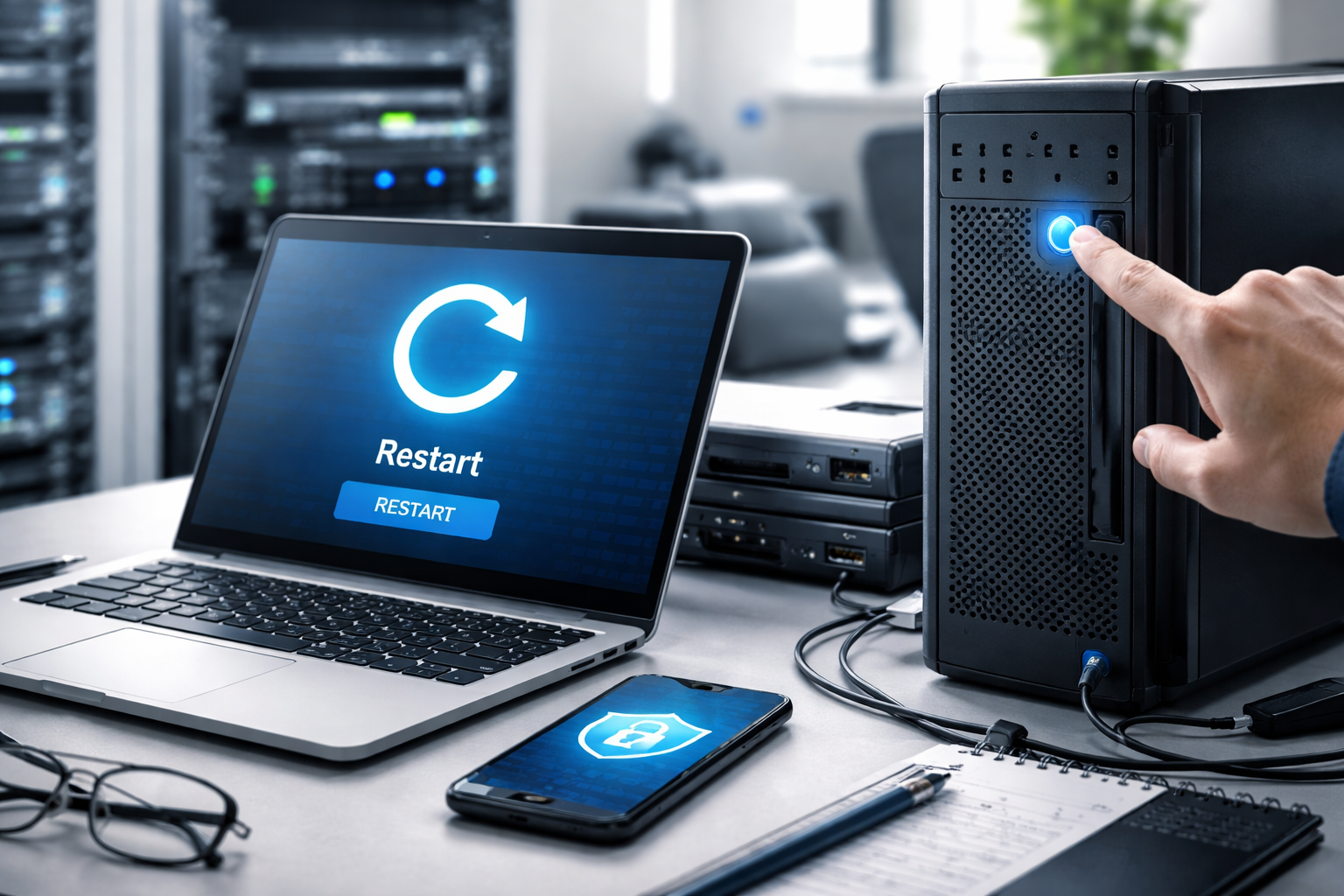
Ask team members to save open documents, close critical apps, then use Restart from the OS menu. A restart is more dependable than shutdown for refreshing system state.
If you use cloud storage (OneDrive/SharePoint/Google Drive), encourage a quick sync check before restarting to avoid “where did my file go?” confusion.
Step 3: Confirm updates and startup health the next business day
After reboot, users should give the machine 2–5 minutes to settle: let startup programs load, VPN initialize, and endpoint protection update. Then verify essentials: email, browser, line-of-business app, printing (if needed), and VPN.
If something is off after a restart, that’s useful information for IT—it often points to a deeper issue worth addressing.
What to tell employees (so it sounds like productivity, not policing)
Keep the message simple and business-focused
Employees don’t need a technical lecture; they need a reason that respects their time. Position restarts as a way to prevent the exact annoyances they complain about: slow laptops, glitchy calls, and weird login prompts.
A good internal message: “Weekly restarts help updates finish and keep your device fast—please restart once per week to reduce disruptions.”
Make it part of “closing duties” for office and hybrid teams
For in-office staff in Midtown, FiDi, or anywhere commuting is a factor, the end-of-week routine is powerful. For hybrid teams, attaching it to a calendar reminder or a simple Monday checklist works well.
If you have shared workstations (reception, back office, retail), define ownership: who restarts, when, and how to ensure systems come back online.
When weekly restarts aren’t enough (and what to do next)
Persistent slowness can signal deeper issues
If performance problems return quickly after restarts, the root cause may be low storage, failing drives, insufficient RAM, bloated startup items, or misbehaving security/backup agents. Weekly restarts help—but they won’t fix an undersized device or a broken profile.
In NYC businesses, we often see older laptops trying to run modern collaboration tools plus multiple browser-based systems at once. At that point, the fix may be a hardware refresh plan, not more reboots.
If restarts are being ignored, automate the habit
If you’re relying on “please do it,” compliance will be inconsistent—especially during busy seasons. Managed IT tools can schedule restarts outside business hours, prompt users at sensible times, and confirm patch completion.

Key Takeaways
- Weekly restarts clear stuck processes, reduce slowdowns, and refresh networking components.
- Many updates and security fixes don’t fully apply until after a restart.
- Sleep and “closing the lid” aren’t substitutes for a real reboot.
- A consistent, low-impact schedule (like Friday evening or Monday morning) makes the habit stick.
- If issues return quickly after restarts, you likely need deeper troubleshooting or a device refresh plan.
Frequently Asked Questions
How often should a business computer be restarted?
For most NYC office and hybrid environments, once per week is a strong baseline. If a device is used heavily for video calls, design tools, or runs long sessions with many apps, 2–3 times per week may improve stability.
Is shutting down the same as restarting?
Not always. A Restart reliably reloads system components and drivers. On some Windows configurations, Shut down can preserve session state in ways that don’t fully clear issues, so restart is the safer option for weekly maintenance.
Will restarting make me lose work?
Only if work isn’t saved. Save documents first and confirm cloud sync if you use OneDrive, SharePoint, or Google Drive. If your apps support autosave, it helps—but it’s still wise to manually save before rebooting.
Should servers and office equipment be restarted weekly too?
Not automatically. Servers, firewalls, and core network equipment should follow a planned maintenance window with change control and proper monitoring. End-user computers are the best place to start with weekly restarts.
What if my computer takes a long time after reboot?
Slow boot can indicate too many startup programs, low disk space, or failing hardware. Document what you notice (how long it takes, any error messages), and have IT review startup items, storage health, and patch status.
Take the Next Step
If your team’s devices feel “randomly slow,” updates are inconsistent, or you’re seeing repeat VPN, printing, and login issues, a weekly restart policy is a great start—but it’s even better with proactive management behind it.
NY Your Expert Tech helps Manhattan and NYC businesses set practical device standards, automate patching and restarts, and reduce the day-to-day IT friction that slows teams down. Request a consultation to review your current environment and build a simple, enforceable routine that keeps your computers stable all week.