

A browser can open the company homepage and still fail at the work that matters. A link may select the wrong account, a report may land in an unexpected folder, or a meeting may open without the needed microphone. Treat browser readiness as a sequence of business tasks, not a single connectivity check.
This guide is for office managers and IT support teams preparing a workstation, changing the standard browser or documenting recurring browser problems. It is not an instruction to replace an organization's managed configuration. Use approved accounts and harmless test records; leave access-policy decisions with the authorized administrator.
Define the small set of workflows that matters
Choose three to five tasks that represent the desk. A receptionist might open a booking link, download an approved visitor report and join a test call. An administrator might review a document, upload a dummy attachment and return to an unfinished record. These are proposed examples, not claims about a particular customer's setup.
For each task, write its starting point and visible completion condition. “Open the portal” is weaker than “Open the portal from the approved bookmark, confirm the intended organization, and find the sample record.” Include whether the work begins in email, a desktop shortcut or the browser itself. Entry routes can expose different account and application choices.
A compact test record
- Device and operating-system version.
- Browser name and version, plus whether it is managed.
- Intended browser profile and website organization.
- Starting link, sample action and expected result.
- Observed result, unresolved limitation and support owner.
Do not put passwords, session tokens or private customer records in this worksheet. The purpose is to reproduce the task, not reproduce someone's authenticated session.
Check identity before checking features
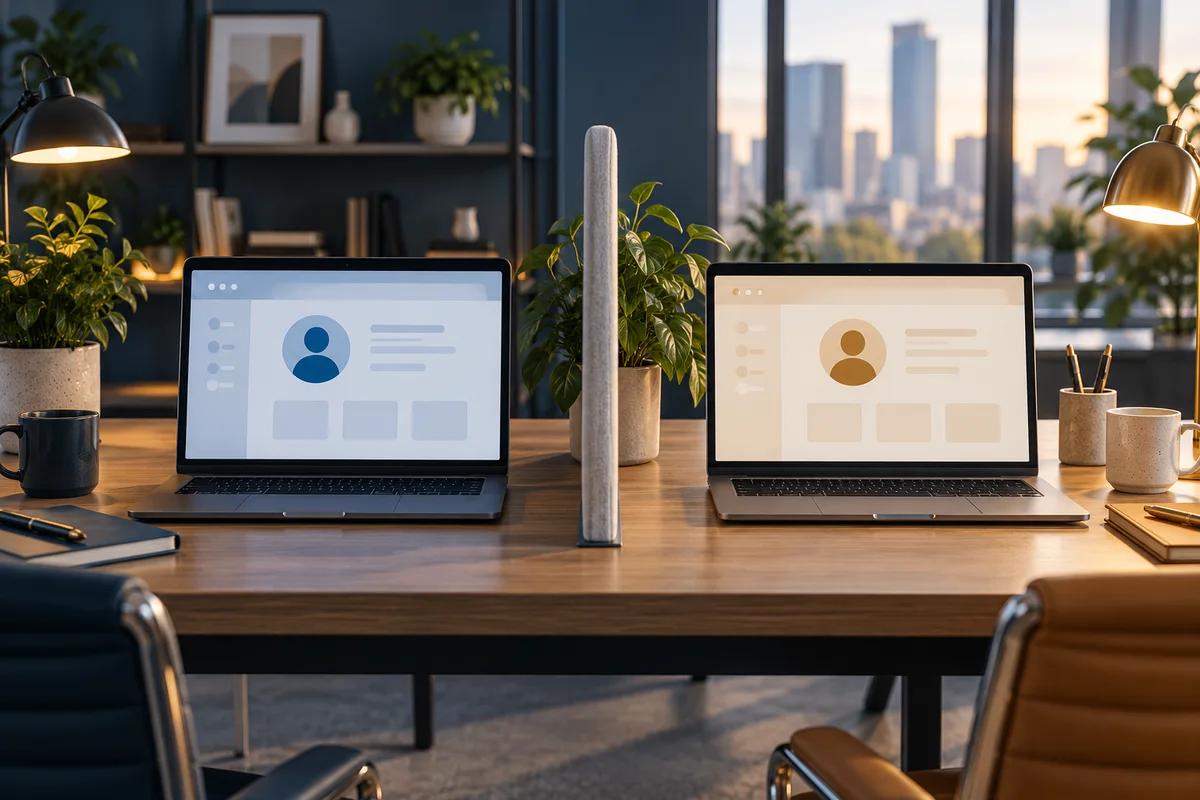
Browser profiles organize browser information, but the website account must still be checked separately. Google's profile documentation explains the distinction between separated browser information and access by someone using the same device. Do not describe a profile label or color as a security boundary.
Use the browser account-context test when several organizations or personal and business accounts coexist. If a link launches a different browser than expected, use the default-browser entry-route check instead of repeatedly signing in without understanding the route.

Follow a file all the way to its destination
Opening a PDF in a tab does not demonstrate that a downloaded copy reached the correct business folder. A browser download history entry does not establish that a teammate can access the resulting file. Use a dummy document with an unmistakable name and confirm its actual path, contents and approved destination.
The download handoff checklist separates previewing, downloading and storing a file. This complements the site's PDF quality guides: here the question is where the browser put the file and which application opened it, not whether its OCR or document layout is correct.
Test only the permissions the workflow needs
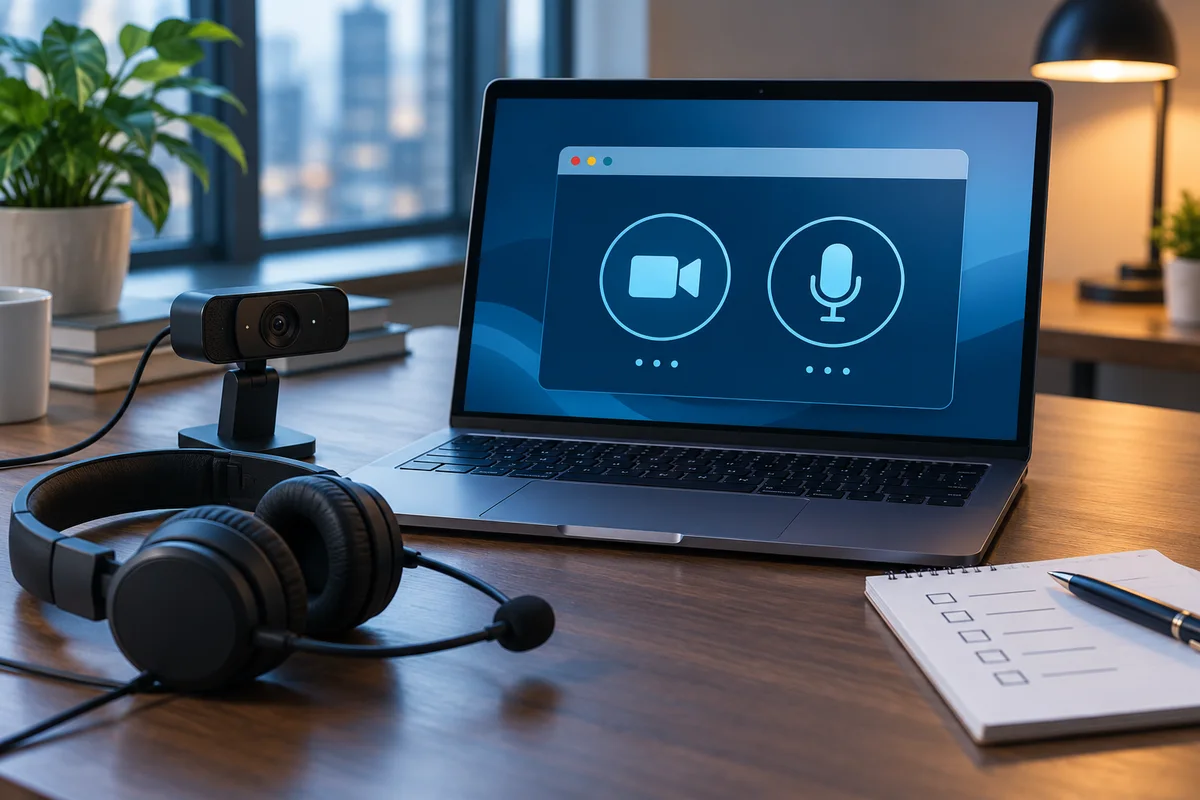
A browser meeting may depend on the selected device, browser site permissions and operating-system permissions. Chrome's camera and microphone guidance describes those separate layers and notes that managed settings may be controlled by an administrator. Granting every permission is not a troubleshooting plan.
Use the site-permission review to record the exact site, requested feature and approved reason. Test the relevant action with a consenting colleague and a non-sensitive scene. Confirm when the session ends; avoid leaving a broad permission change as an undocumented side effect of diagnosis.

Finish after a normal restart, not before it
A setup should still work after the browser closes and reopens. Google's update instructions explain that applying an update can require relaunching. Save work first and follow the organization's update process. The planned browser-restart guide focuses on preserving the work boundary and checking the result, not delaying required updates indefinitely.
Hand the record to the person who will use the desk. Have them complete a representative task without the technician supplying each click. Where browser behavior repeatedly interrupts office work, Your Expert Tech's managed IT services provide a starting point for discussing user, software and workstation support. A tested configuration is useful evidence of readiness; it is not a guarantee that every website will behave identically.
Reviewed October 24, 2026. Browser controls and supported features vary by version and organizational policy. The test procedures are proposed office checks, not vendor certification.