
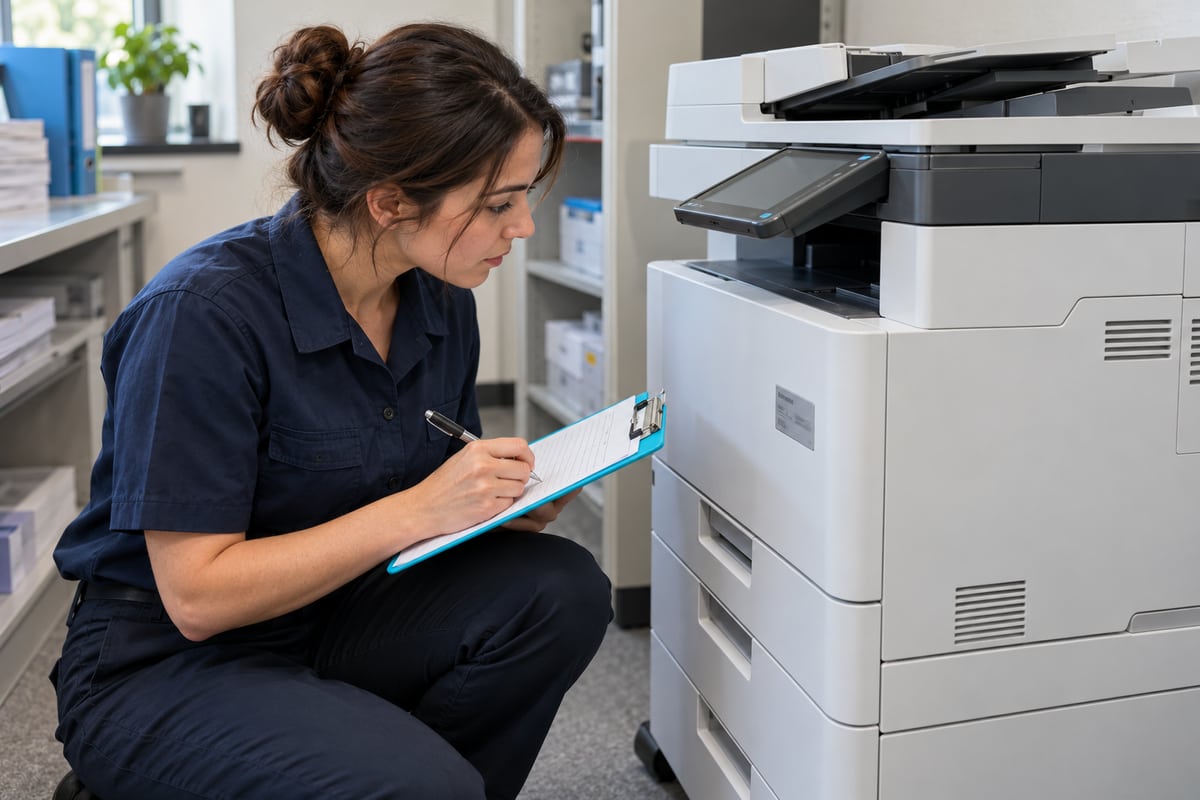
Before changing a scanner's email settings, find out what is actually in use. A small office can have a main copier, a desktop scanner, an old multifunction printer, and a vendor-managed device with different capabilities. Treating them as one system makes troubleshooting unnecessarily confusing.
This inventory is the first decision gate in the Microsoft 365 scan-to-email guide. It is designed for an office manager and an IT administrator to complete together without copying credentials into a spreadsheet.
Create one record per physical device
Use an asset label or a location-plus-model identifier that staff can recognize. Record the serial number in your restricted asset register, not in a public help article or a broadly shared ticket. Photograph labels only if your organization's handling rules allow it; a written reference is often enough.
| Field | What a useful entry looks like | What to avoid |
|---|---|---|
| Location and business owner | Reception; operations manager | “Main printer” with no location |
| Model and firmware | Exact model and observed installed version | Product family alone |
| Support responsibility | Named vendor or internal team | “Someone in IT” |
| Current destination scope | Approved internal purchasing mailbox | Unreviewed address-book export |
| Sending route | Confirmed method, or explicitly unknown | Guess based on a port number |
| Evidence | Date checked and documentation reference | Unattributed memory |
The sample entries describe a record format, not a real client installation. Leave unknown values marked unknown. An honest gap is safer than a plausible guess that becomes the basis for a change.

Separate capability from configuration
A manufacturer's current manual can show a feature that an older firmware release does not expose. Conversely, a feature can exist but be deliberately disabled by your organization's policy. Keep three columns: documented capability, observed device setting, and administrator-approved use.
Ask the device vendor for documentation specific to the model and installed software. Request confirmation of supported authentication and encrypted transport, how failures are logged, where queued jobs reside, and how saved destinations and credentials are removed. Record the answer's date and scope. Do not accept “works with Microsoft 365” as a complete compatibility statement.
Microsoft's device email setup guidance is the service-side reference; it does not replace the device manual. If the two appear inconsistent, pause the proposed configuration and ask the responsible administrator and vendor to resolve the mismatch.

Map the business workflow separately
Ask two regular users to explain their actual scanning process. Do they select a saved recipient or type one? Does a substitute employee use the same device? Are copies sent to a shared mailbox that nobody checks on Fridays? These observations uncover workflow failures that a network test will never find.
Write the required recipient groups in plain language, but store actual address lists only where authorized. Note whether external sending is genuinely necessary. “Someone might need it someday” is not a reason to expand a route's scope today. List any document categories that need an alternative approved transfer method.

Find shared dependencies before touching them
Have the administrator identify whether the sender identity, connector, network egress, or vendor service also supports other equipment. Record a dependency reference, not its secret values. This matters when a password, certificate, network connection, or policy changes: a fix for one copier could affect a different business workflow.
For each dependency, name an owner and a change-notification destination. If ownership is unclear, resolve it before selecting the email route. Avoid enabling extra access merely to make the inventory look complete.
Finish with an actionable gap list
Group gaps by the decision they block. “Firmware version unknown” blocks compatibility verification. “External recipients not approved” blocks external testing. “Vendor contract unavailable” may block a retirement plan. Assign each gap to a person and record the evidence that will close it.
The inventory is ready when the administrator can explain the proposed route, the business owner can describe acceptable delivery, and support can identify the device without asking staff to read random settings aloud. Keep the record current when equipment, firmware, network location, or recipient scope changes. Then move to the synthetic-document acceptance tests with a known starting point.

Editorial review: October 14, 2026. Workflow examples are illustrative. Verify current service guidance and device-specific documentation before configuration changes.