

A successful workstation setup can fail at the next desk. The employee can sign in, but the preferred text size is missing, a required keypad is absent, or a control needed before login was never checked. A handoff should establish that the destination computer supports the actual work, not merely that an account exists.
This guide completes the workstation accessibility setup plan. It focuses on shared desks, replacement PCs and support transitions. It does not prescribe employment accommodations or ask staff to disclose a medical condition. Record only the configuration and work requirements needed by the authorized support team.
Separate the three layers of the handoff
Treat the sign-in experience, signed-in operating-system settings and individual application settings as separate checks. A configuration that works after login does not prove the person can reach that session independently. Likewise, a browser preference does not necessarily change a desktop application.
Microsoft explains that Windows supports separate user accounts with their own settings, documents and applications. That is not evidence that every accessibility option is account-scoped or that every preference will synchronize to another computer. Test the exact setting on the destination device.
Apple's login-window accessibility guidance says those options apply to all users and are distinct from preferences used after login. Some changes need administrator authorization. On a shared Mac, consider the next authorized user as well as the person requesting the adjustment.

Write a configuration record, not a personal dossier
Keep the handoff in the approved support system. A useful record contains:
- Device identity and operating-system version.
- Approved account context without its password or recovery codes.
- Exact settings needed, with the previous values where relevant.
- Application-specific preferences and the application version tested.
- Required keyboard, pointer, display and audio equipment.
- How to activate, pause and restore the configuration.
- The task tests completed, limitations remaining and support contact.
Avoid explaining why the employee has a particular preference unless that information is necessary and belongs in the authorized process. “Needs this caption placement to follow the test meeting” is operationally useful. A diagnosis is not needed to reproduce the setting.
Test the destination, not just the source
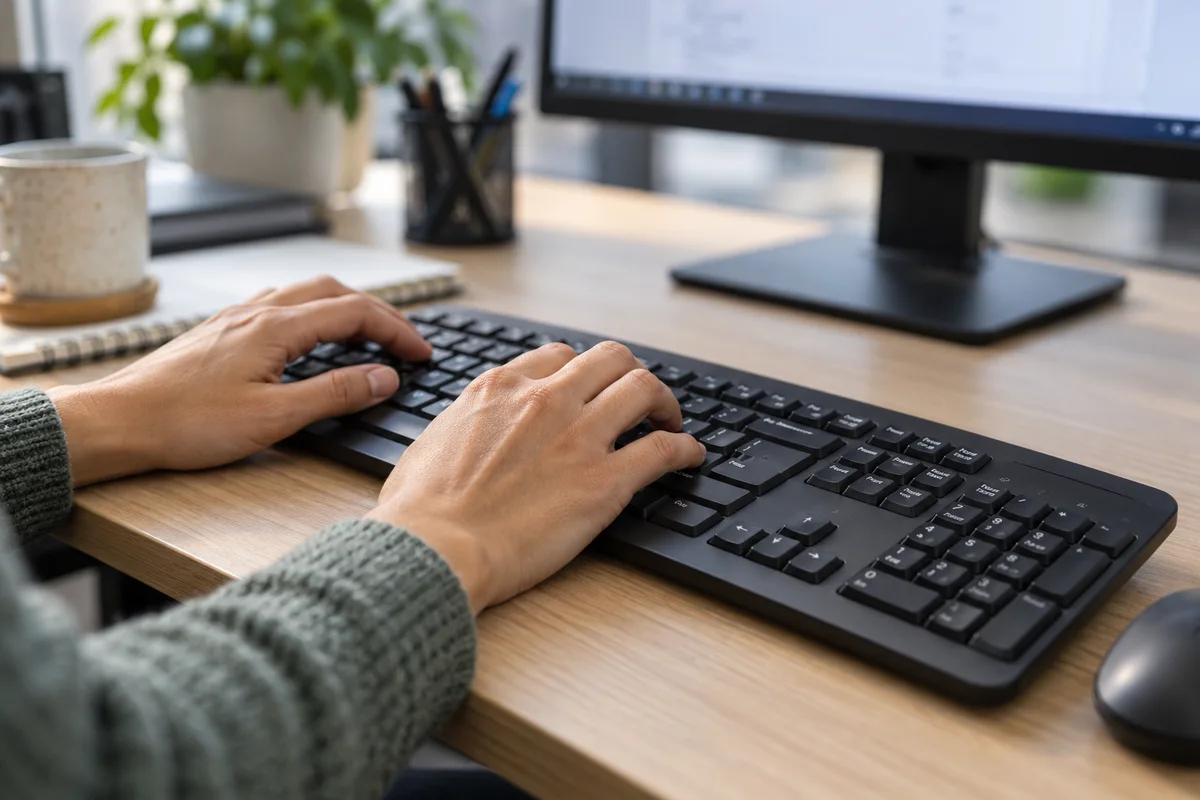
Arrange a short session on the actual desk with its normal peripherals. If support cannot reproduce the whole setup, record what is missing and avoid closing the ticket as complete. A laptop tested alone may behave differently when connected to the shared monitor or input device.
A practical acceptance sequence
- Verify the approved sign-in path without asking the person to reveal credentials.
- Confirm the relevant settings after login.
- Read a routine message or document at the preferred size.
- Complete a harmless form or application task using the preferred input method.
- Follow sample audio using the chosen output and captions, if required.
- Reconnect normal equipment and repeat the step most likely to change.
- Confirm the person knows how to recover from an unfamiliar mode and whom to contact.
Use the display guide and captions/audio guide for detailed tests. Do not automatically reset a successful user preference to a technician's default before returning the device.

Check what persists and what does not
Closing a control is not always a reset. Microsoft notes in its On-Screen Keyboard guidance that the last Nav or General layout persists when the keyboard is reopened. It also documents access from the Windows sign-in screen. If this tool is part of the handoff, check its actual state rather than assuming a fresh launch restores the expected layout.
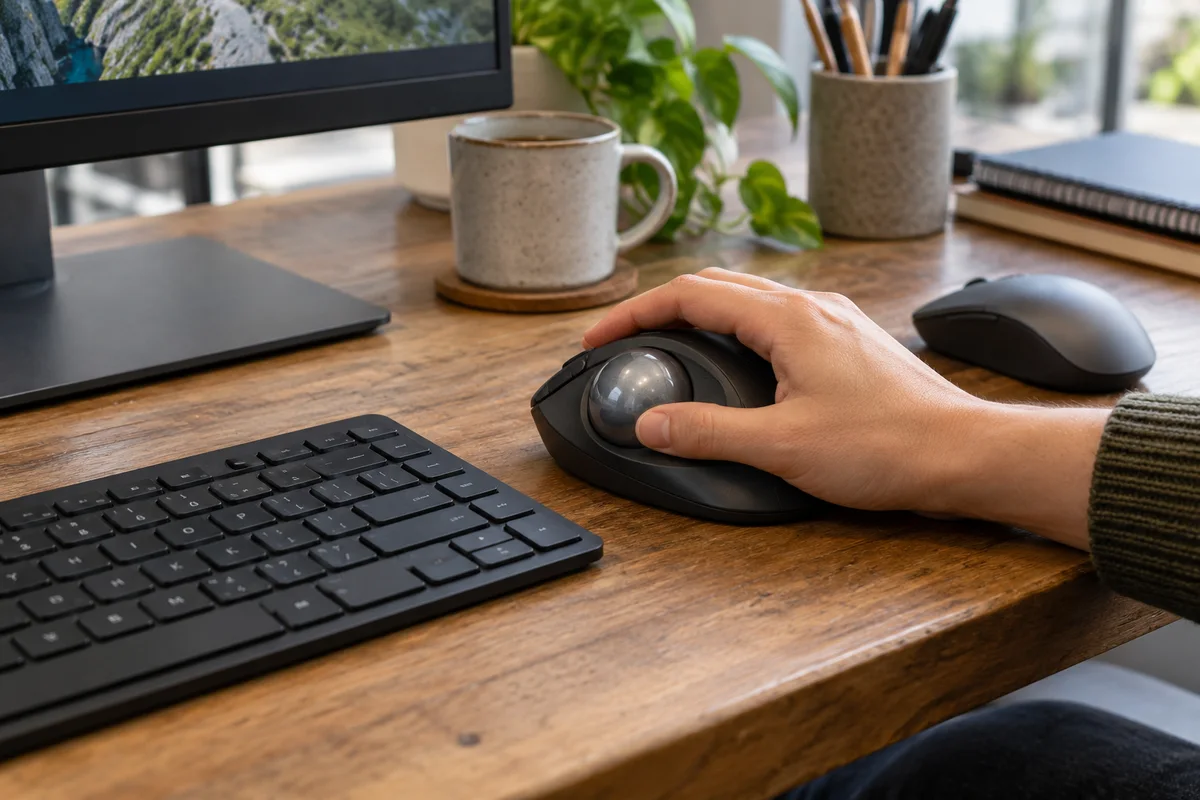
For shared equipment, agree which settings belong to the person, which affect the device and which need a shared-desk operating note. Test the next approved user's experience where relevant without opening their private work. If an adjustment is device-wide, support should understand the effect before applying it broadly.
A replacement computer may have a different OS version or application build. Record changed menu names or unavailable options. An old screenshot is not a reliable instruction if the destination interface has changed.
Close with evidence and an owner
Schedule review when the device, important application or work arrangement changes, rather than treating the record as permanent. Your Expert Tech's managed IT services are a starting point for discussing support ownership and workstation transitions. The goal is a reproducible, user-approved setup with visible limitations, not a claim that all settings transfer automatically.
Editorial review: October 23, 2026. These proposed handoff checks do not certify accessibility or establish legal compliance.