

A workstation can meet its hardware specification while still making everyday work difficult. Small text, hard-to-follow focus, an awkward pointer or audio that cannot be understood can each interrupt a different part of the same task. The useful starting point is not a shopping list. It is a conversation with the person using the desk and a small, repeatable work test.
This plan concerns user-chosen computer settings and support handoffs. It is not medical advice, an employment-policy guide or an accessibility certification. Do not collect a diagnosis in a routine configuration ticket. Record the task, the agreed adjustment and whether it helped. Keep any separate accommodation process with the people authorized to handle it.
Start with the work, not every available setting
Ask what the person wants to accomplish and which existing tools already work for them. A useful description is “I need to read the order details and reach the Submit button at my preferred text size.” “Make the computer accessible” is too broad to test. Do not replace an established screen reader, input method or specialized setup merely because another option is built in.
Windows accessibility features and Mac accessibility features cover several kinds of interaction. Availability and behavior depend on the operating-system version, application and sometimes hardware or language. Confirm the actual device before writing instructions.
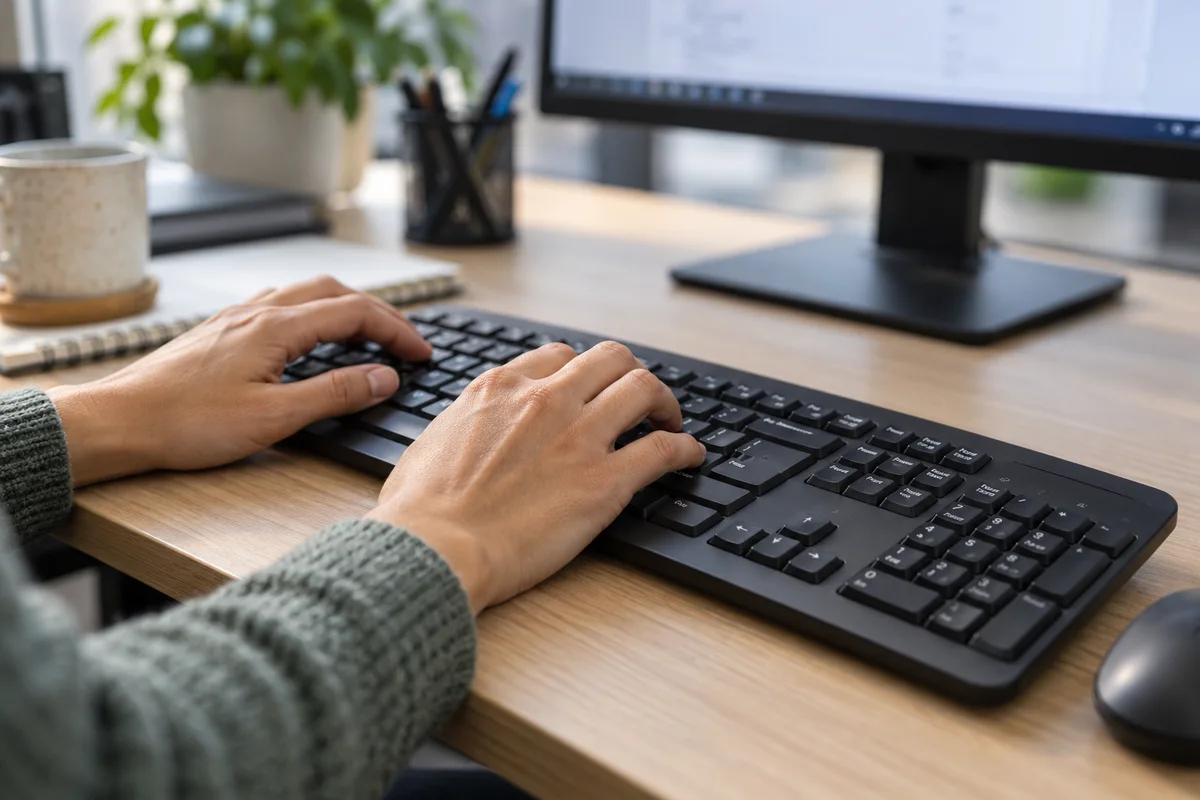
Choose the relevant test, then connect the results
The five supporting guides address different acceptance decisions:
- Keyboard navigation at work tests reaching and operating controls, not just memorizing shortcuts.
- Text size, scaling and zoom separates application, text and whole-display adjustments.
- Captions and audio checks the actual sound source, readable placement and meeting workflow.
- Pointer options distinguishes visibility, mouse behavior and keyboard pointer emulation.
- Shared-workstation handoff checks what happens before login, after login and on the destination desk.
A person may need more than one of these. Record interactions between settings: enlarged content may change where a dialog appears; a pointer-control mode may change typing; a caption panel may cover a meeting control. A successful isolated setting is not yet a successful workflow.

Build a small acceptance session
Use the employee's approved account and normal equipment. Record the operating-system version, important application versions, monitors, keyboard, pointer and headset. Use dummy documents or non-sensitive examples. The session should not require sharing passwords or copying private work into a test service.
Three tasks worth adapting
- Open a routine message, read its important details and return to the inbox.
- Complete a representative form, review the entered values and cancel or submit only a clearly identified test record.
- Join an approved test meeting, find its controls and follow a short piece of sample audio.
These are proposed tests, not vendor-certified procedures. Replace them with the person's real work when appropriate. Agree what “works” means before changing settings: readable content, reachable controls, understandable audio and a way to recover from an unfamiliar mode.
Change one relevant setting at a time. Record the previous value, the new value, the task result and how to restore it. Do not force a preferred configuration back to a default simply because the default is easier for the technician to recognize.

Separate configuration failures from application barriers
If the setting helps in one application but not another, record the application and exact step. For example, a form may hide its confirmation button at the chosen zoom, or a menu may not expose a usable keyboard path. Repeating operating-system changes will not necessarily fix an application-specific limitation.
Give unresolved issues an owner and an approved temporary method, if one exists. Do not call an untested workaround a solution. When reporting a product issue, include the version, control name, expected behavior and observed behavior with non-sensitive evidence. Avoid uploading an employee's personal configuration record to a public forum.
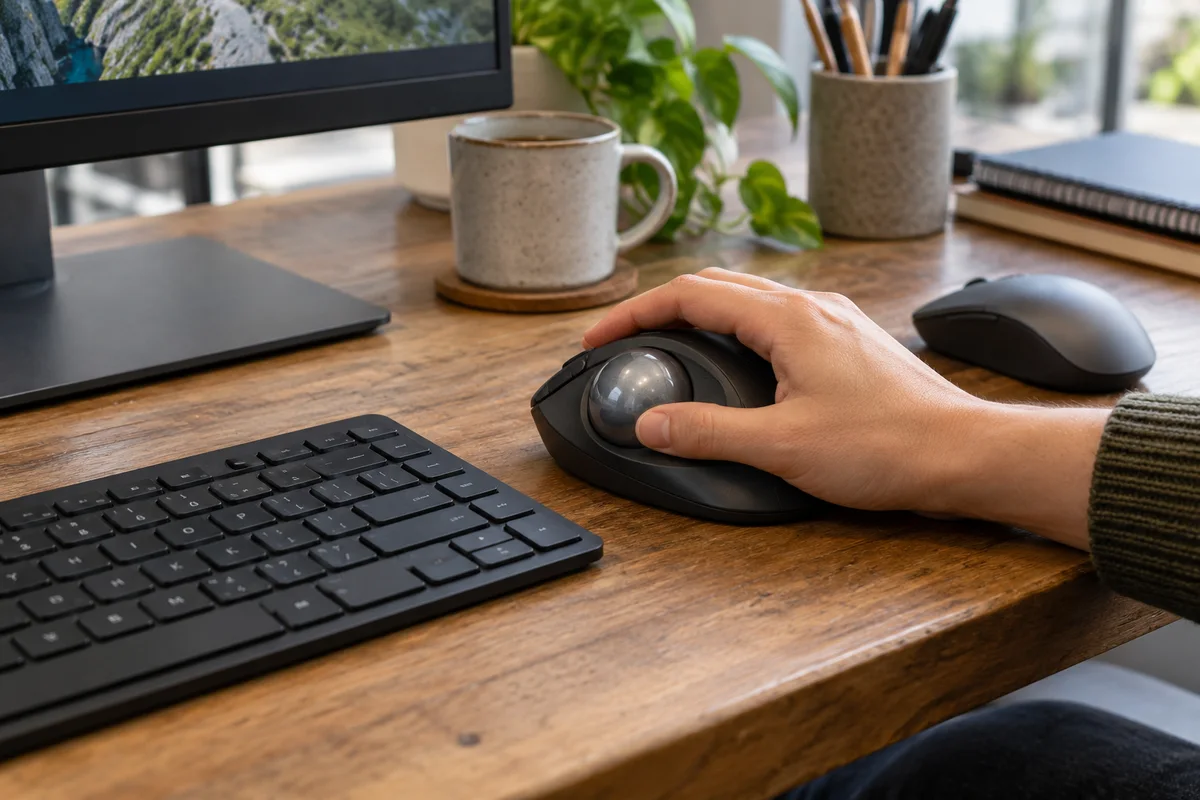
Finish with a usable handoff
Retest after a replacement PC, major application change or move to another desk. The handoff is a record of the tested setup, not a promise that every future application will behave identically. Your Expert Tech's managed IT services offer a starting point for discussing workstation configuration and ongoing support. Bring the work requirement and a non-sensitive example so the discussion stays practical.
Editorial review: October 23, 2026. Feature names and availability vary by supported software version. These office test procedures do not establish legal compliance or replace individual advice.