
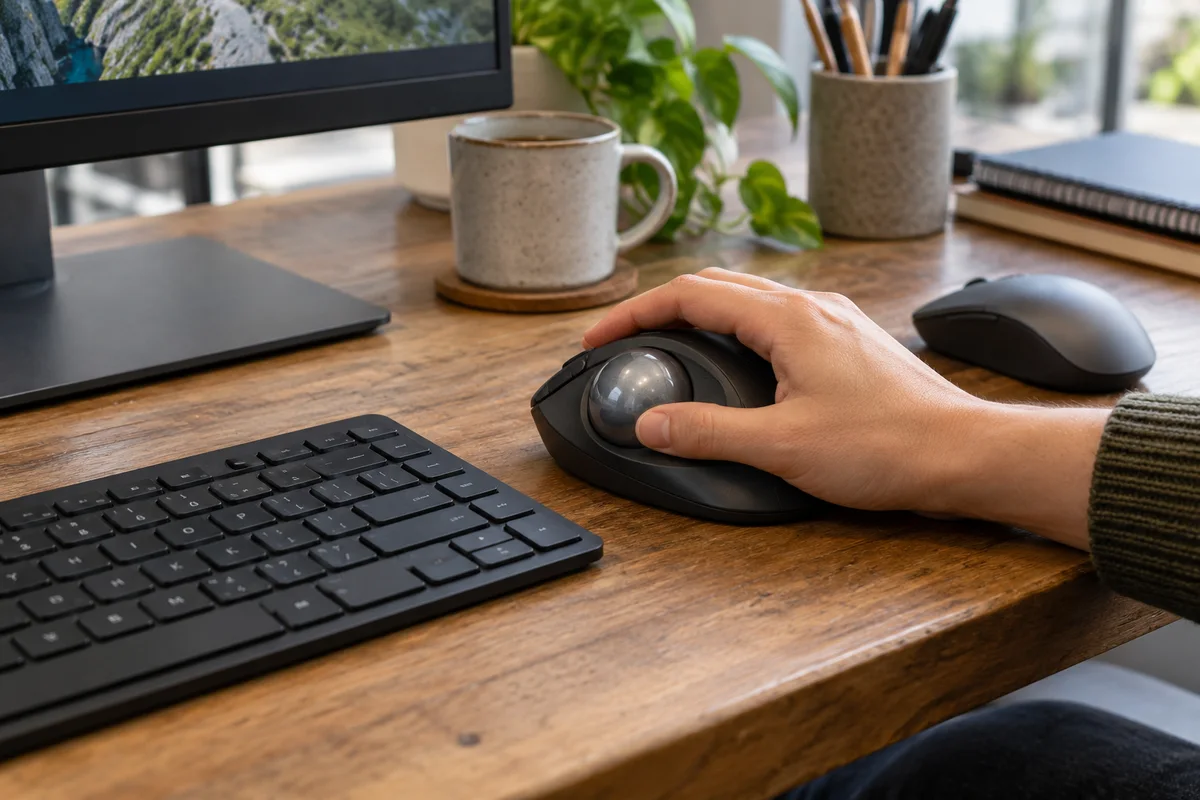
A pointer problem is not always a mouse problem. The pointer may be difficult to locate, a double-click may be unreliable, scrolling may feel wrong, or a particular application may demand a movement that is awkward to perform. Replacing the mouse before identifying the failing step can leave the real issue unchanged.
Use this guide within the workstation accessibility setup plan. Its purpose is to test user-chosen controls, not to recommend a device for a medical condition. The person doing the work should guide the trial and decide whether the result is useful.
Describe the difficulty precisely
Separate four questions before changing anything:
- Can the person find the pointer against the content they normally view?
- Can they position it and activate the intended control reliably?
- Does scrolling or dragging create difficulty in a specific task?
- Would a direct keyboard command avoid the pointer movement altogether?
A larger pointer addresses visibility, not necessarily movement. Changing the primary button affects how a mouse is operated, not how an application exposes its commands. A keyboard alternative may be preferable for one action even when a mouse works well for others.

Test visibility and mouse behavior separately
Microsoft's input-device accessibility guidance describes Windows pointer size and color, primary-button choices, scrolling and Mouse Keys. Use the instructions for the installed version rather than assuming every settings page looks the same.
Start with the smallest relevant adjustment and keep the previous value in the support record. Test on the actual screens and usual background colors. Ask the person to find the pointer after reading a document, switch to another window and select a small but ordinary control. If visibility improves but selection remains difficult, record that distinction rather than calling the whole test passed.
For physical devices, use an approved trial unit if available. A trackball, touchpad and conventional mouse behave differently. Do not promise that a particular shape will solve a person's difficulty or purchase equipment before the required authorization.

Understand what Mouse Keys changes
Mouse Keys uses keyboard input to control a pointer. It is different from navigating an application's controls directly with a keyboard. Windows describes Mouse Keys with a numeric keypad; check the actual keyboard rather than assuming a compact laptop includes the needed layout.
Apple's Mouse Keys guidance explains how keyboard or keypad keys move and click the pointer. Apple also warns that text entry using those keys is unavailable while Mouse Keys is on. Before enabling a mode, establish how the person will turn it off and resume typing.
The keyboard navigation guide covers the separate question of whether menus, forms and dialogs can be reached and operated through an application's keyboard interface. W3C's keyboard guidance concerns that interface; moving a pointer with keys does not prove the application meets it.
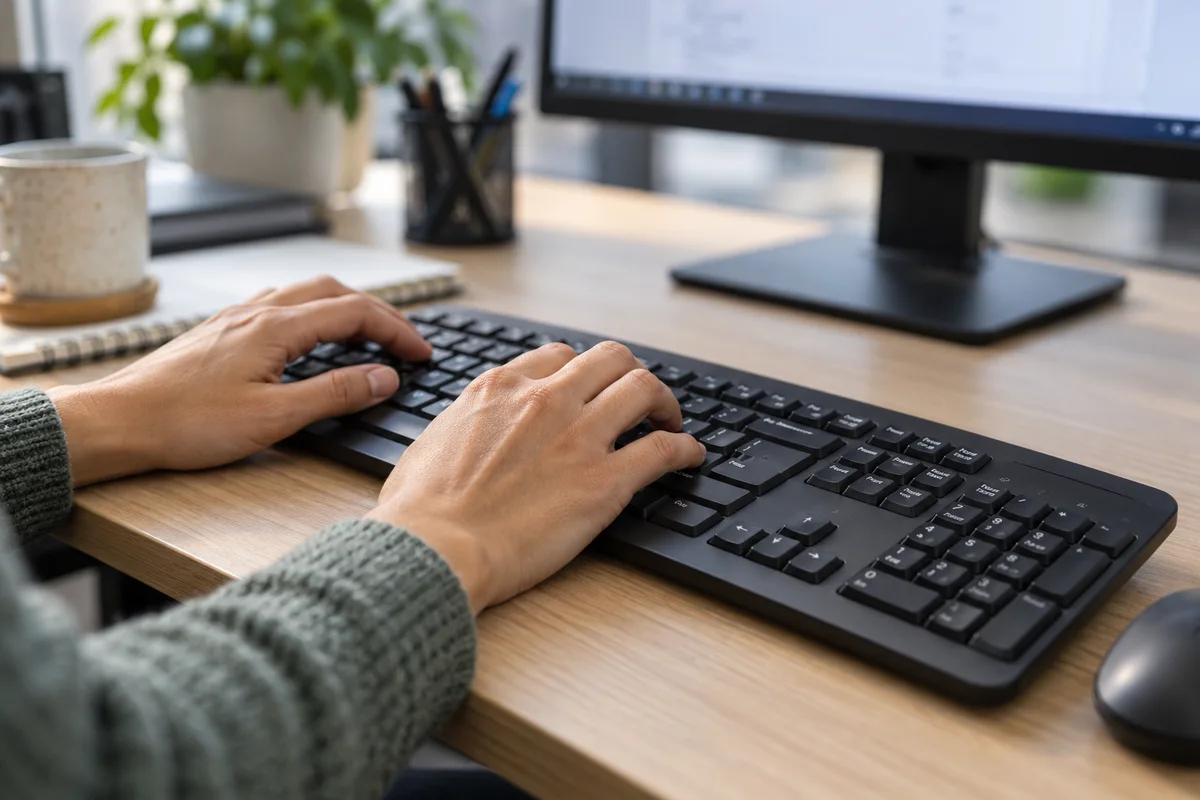
Run a real-task trial with an exit route
Use harmless content and agree on a way to stop the trial. Ask the person to perform the following tasks using the chosen method:
- Select a short passage of text and correct the selection if necessary.
- Open a context menu and cancel it without taking an unwanted action.
- Scroll through a long page and return to a known heading.
- Activate a small control in a normal application.
- Move an item using the application's supported command, then undo the test change.
- Exit any special pointer mode and type a short sentence normally.
If a dragging action is difficult, look for an existing supported menu or keyboard command rather than inventing a workaround that changes data unexpectedly. Record the exact operation that remains difficult. A successful pointer trial in a blank desktop is less useful than a clear result in the application where work happens.
Check dependencies before moving desks
Record any numeric keypad, paired device or other approved peripheral the method depends on. Apple also documents additional mobility options, but do not enable features requiring a camera or another device without explaining and obtaining the relevant approval. Choose the least complicated supported setup that the user finds effective.

Preserve the preferred setup
Apply the shared-desk handoff checks when the person moves computers. Do not assume a paired device or setting will follow automatically. For a support discussion, Your Expert Tech's managed IT services provide an appropriate starting point; bring the specific task and trial results rather than a broad request to replace everything.
Editorial review: October 23, 2026. This is a practical configuration workflow, not medical advice or a guarantee of accessibility.