
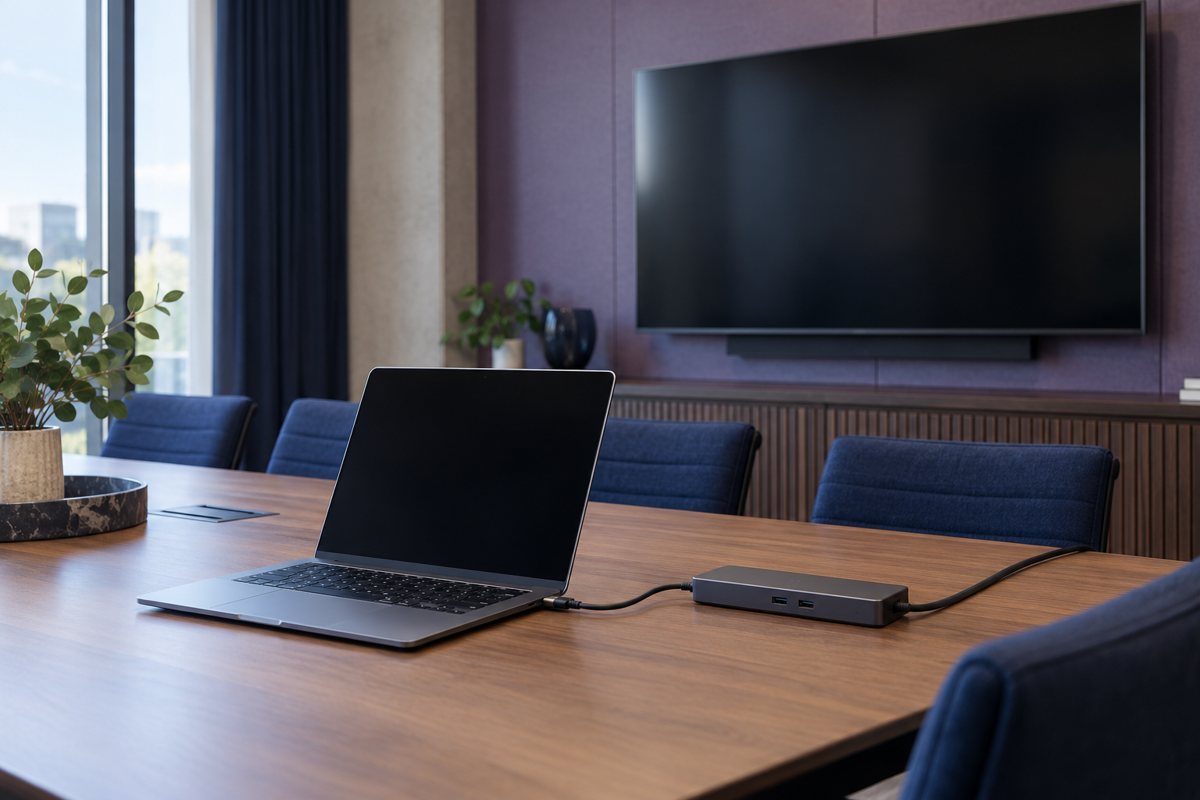
Two display sockets on a dock do not, by themselves, establish that a laptop can drive two independent screens at the settings your staff needs. Approve the complete configuration: computer, operating system, dock, cables, monitors and the intended display arrangement.
Use this guide within the office docking-station plan. Its purpose is procurement and acceptance for individual desks, not a ranking of monitor models or a conference-room screen-sharing tutorial.
Describe the display outcome precisely
Record how many external displays are required, whether they should extend the desktop or mirror it, their intended resolution and refresh rate, and whether the laptop's built-in display remains in use. These details give the supplier a question it can actually answer.
Add the user's working needs: readable text, usable application windows and a pointer that moves naturally between screens. Do not equate the largest advertised resolution with a successful work setup. Have a representative user check the actual business applications at the intended scaling before standardizing the desk.
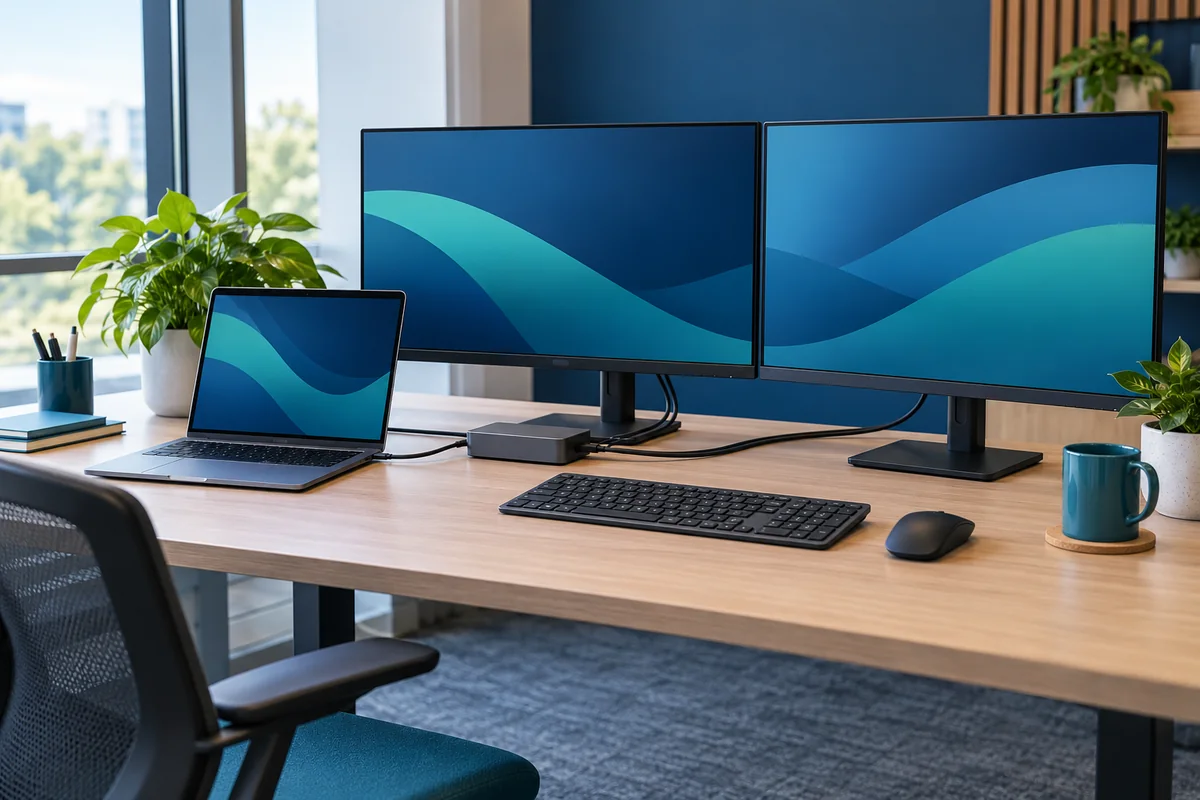
Check the host limit before the dock specification
Apple's display guidance states that simultaneous display support depends on the Mac model and the resolution and refresh rate of the displays. Look up the exact model, not simply “MacBook.” Apply the same model-specific discipline to Windows hardware and its graphics documentation.
Next review the dock manufacturer's supported output combinations. Ask whether the proposed result depends on a particular host capability, operating system or approved software. Do not infer that every port combination shown on a product photograph can be used simultaneously at its maximum advertised setting.
Make the connection map explicit
Create a small record for each screen: monitor identity, dock output used, cable or adapter identity, monitor input selected and agreed settings. This lets a replacement technician reconstruct the tested path without guessing which identical cable belongs where.
Keep adapters to the documented arrangement. If a supplier proposes an additional adapter to solve a mismatch, include it in the acceptance test and parts list. A chain that succeeds once on a technician's bench should not silently become an office standard without a repeatable result.
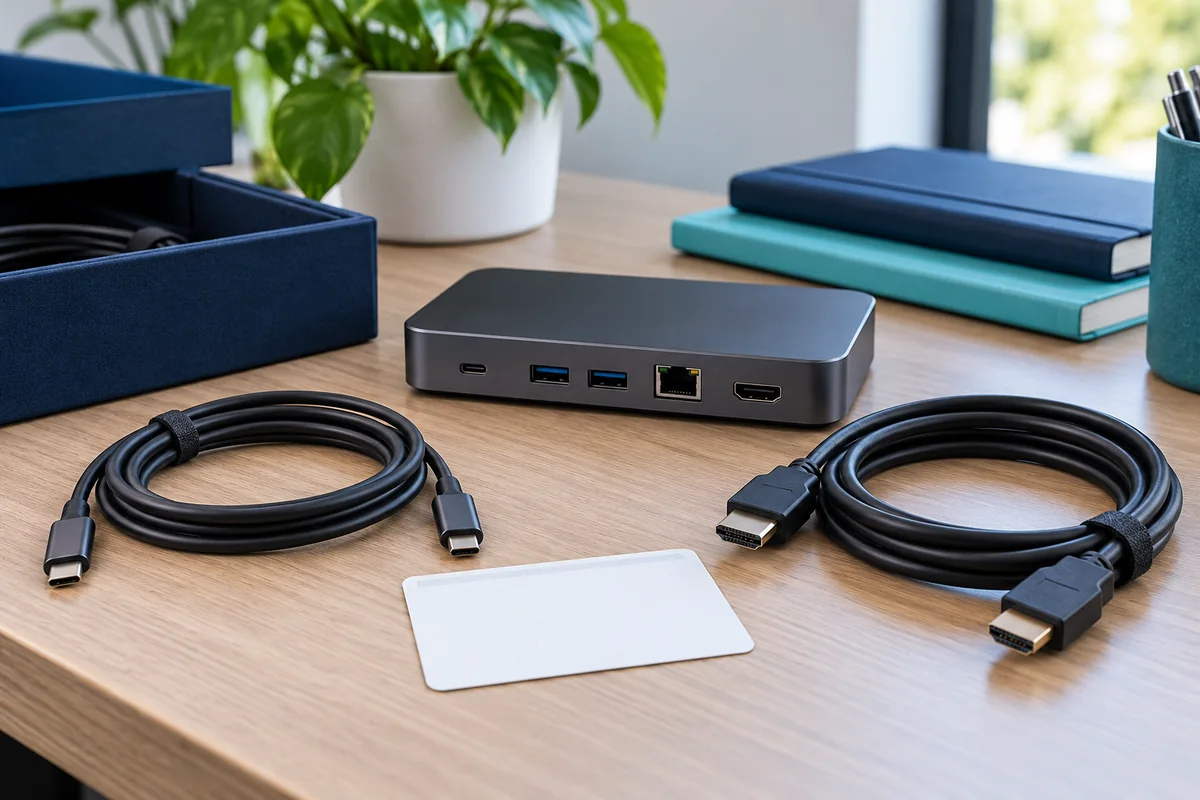
Microsoft explains Windows display arrangement and projection modes, including the distinction between Duplicate and Extend. During testing, check the intended mode explicitly. Seeing the same desktop on two screens is not proof that two independent work areas are available.
Test the application, not only the wallpaper
Use non-sensitive sample material in the applications the desk supports. Check menus, dialog boxes, text size and any task that spans multiple windows. Ask the user to identify what is uncomfortable or unusable instead of requiring them to accept a technically available resolution.
Observe arrival, an ordinary disconnect and reconnect, and any normal sleep or restart behavior included in the desk's approved workflow. Record whether the intended arrangement returns or requires a documented user step. Do not promise that a preference will survive every device change merely because it survived one test.
If software-based display support is part of the proposal, have IT review the official vendor requirements, deployment permissions and ongoing support implications. Do not bypass endpoint restrictions or ask staff to install an unknown download to obtain a second screen.
Record limitations at the right level
Use a result for each laptop configuration rather than one broad verdict for the office. A fictional setup might support the required two-screen arrangement on one host while another is approved for one external display only. State that distinction in the desk register and booking information where relevant.
When a screen is absent or unstable, record which output, monitor and host combination failed. Support can then isolate the issue using manufacturer guidance. Avoid changing several cables and settings simultaneously, which may restore an image without explaining what the accepted configuration now is.

Display release checklist
- Host limits and dock output combinations have been checked.
- Each monitor's connection path and agreed settings are recorded.
- Extend or mirror behavior matches the business requirement.
- Representative applications are readable and usable.
- Reconnect behavior and supported limitations are documented.
Keep this evidence beside the power check and peripheral test. A working display alone is not acceptance of the entire workstation, but a precise display record makes later troubleshooting much less ambiguous.
Editorial review: October 21, 2026. Check current manufacturer documentation for your exact equipment. The operational checklists are proposed planning aids, not a certification or compatibility guarantee.