
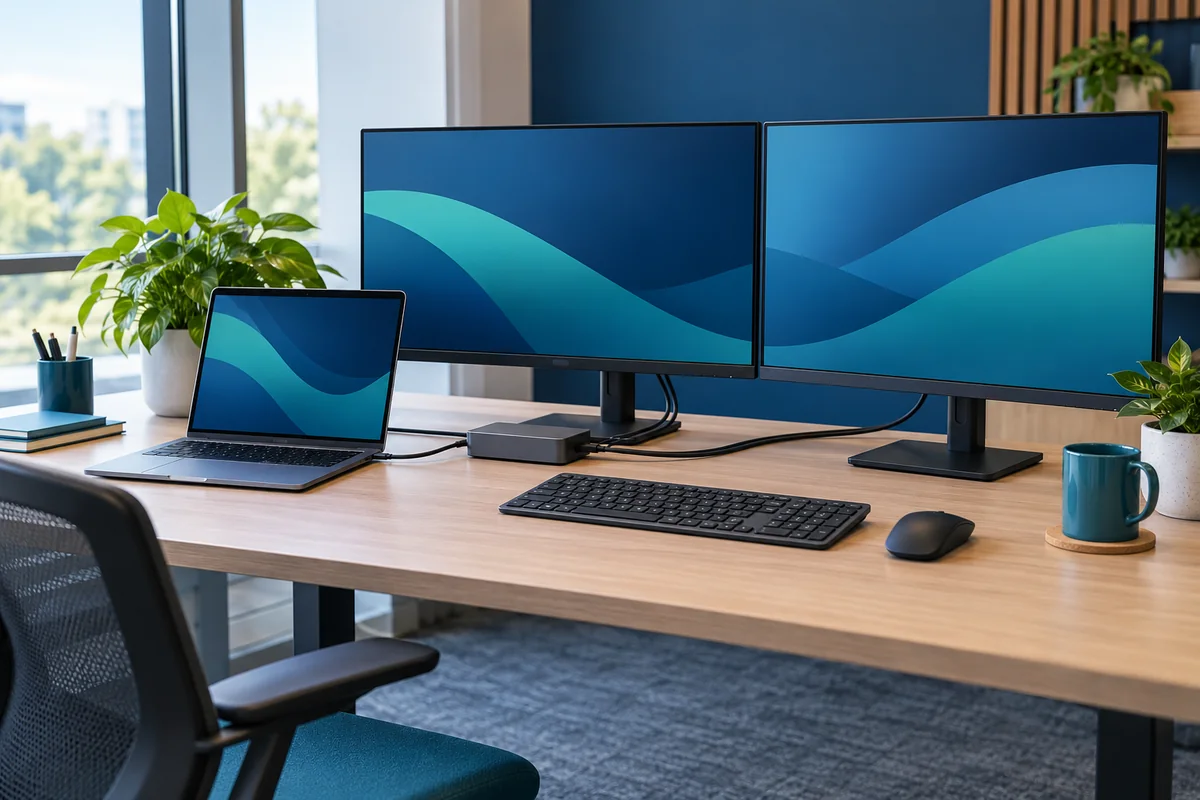
A docking-station purchase becomes an office support decision as soon as several employees depend on it. The useful question is not simply how many ports the dock has. It is which complete desk configurations the business can support, what limits employees will encounter and how a failed desk will be restored.
This guide concerns permanent and shared individual workstations. For conference-room presentation and remote-participant workflows, use the separate meeting-room readiness guide. A personal desk has different acceptance priorities: sustained working power, usable displays, everyday peripherals and a repeatable arrival routine.
Start with the work at the desk
Write down the actual activities before comparing products. A receptionist using a phone headset and two business applications has a different dependency list from a designer using a high-resolution display and external storage. Separate required functions from preferences, and have the department owner confirm the difference.
Describe the minimum usable desk in plain language. Examples might include two independently extended displays, an approved wired network connection and a headset that remains selectable after reconnecting. These are examples of requirements to decide, not a promise that any particular dock provides them.

Create a supported-configuration register
Record exact laptop models and relevant configurations, operating systems, dock models, host cables, power adapters and monitor models. Add the approved software or firmware baseline without putting passwords or confidential screen captures in the record. A family name alone can conceal different ports or graphics capabilities.
Dell's docking-station guide directs buyers to model-specific compatibility and user guides. Apply that principle to the manufacturers in your own fleet. A general product category is not evidence that a particular combination will meet the desk requirement.
Use three explicit outcomes: supported, supported with a stated limitation, and not yet approved. Keep untested combinations out of the supported column. Assign someone to review the register when the company introduces a new laptop model or changes the desk equipment.
Resolve the five practical decisions
- Review the dock power budget before assuming one cable can replace the laptop's normal charger.
- Define the external-display requirement before ordering monitors or adapters.
- Run the peripheral workflow check with the actual keyboard, headset and business tasks.
- Specify replacement cables and spares so a missing cable does not erase the tested configuration.
- Use a staged desk pilot before releasing a larger purchase or rollout.
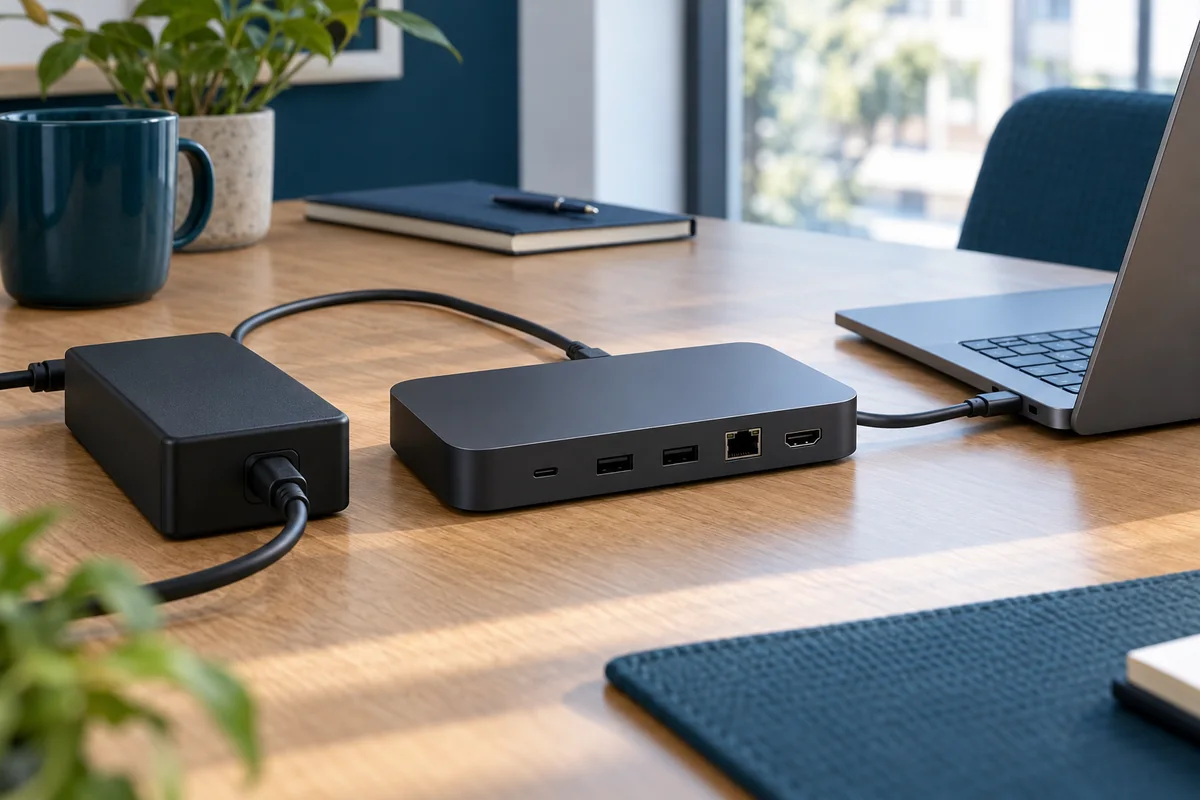
Decide how exceptions will work
A small number of specialist laptops may need a different arrangement. Write down whether those users receive a dedicated desk, a separate approved charger or another tested connection. Do not let an exception turn into a hidden desk instruction that only one employee knows.
For a fictional office with two laptop types, a successful test on the more common type does not establish support for the second. Mark the second configuration as awaiting review, retain an approved fallback and tell the affected staff what is available. That is more useful than announcing universal compatibility and discovering the limitation on arrival.
Include support and replacement in the buying decision
Compare the complete proposed kit, not the dock price alone. Identify required power supplies, host cables, monitor cables, approved software, deployment work and suitable spares. Confirm what the supplier includes and what must be purchased separately. Avoid projecting savings unless you have measured your own costs.
Ask who will diagnose a problem involving several manufacturers. The answer should define a first contact and the evidence that person needs, rather than promise that one provider controls every warranty or product defect. Keep supplier references with the configuration record.
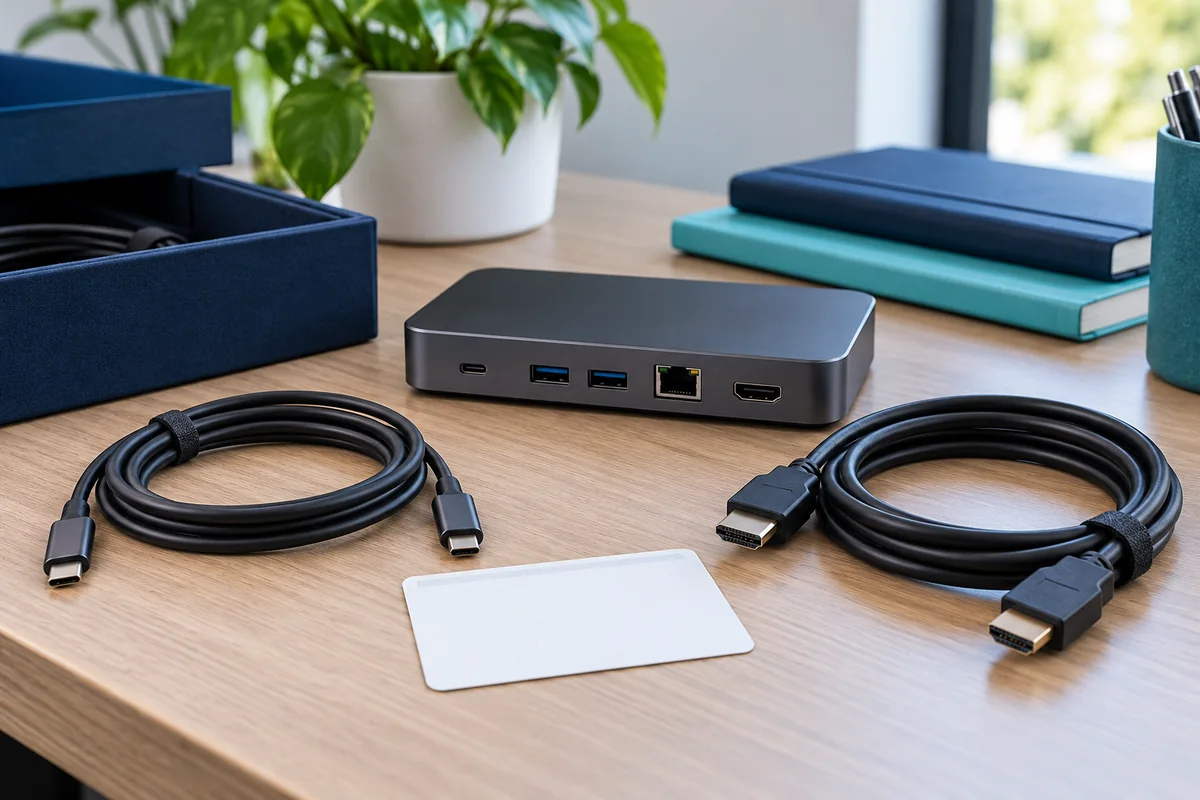
Hand over a usable desk standard
The employee-facing instruction should be short: which cable to use, what the desk supports, how to select the intended audio device and where to report trouble. The technical record can hold the deeper compatibility and test evidence. Do not place account details or administrative instructions on a public desk card.
Release checklist
- Department requirements are agreed and measurable.
- Each supported laptop configuration has a recorded result.
- Display, power and peripheral limitations are stated separately.
- A tested spare or fallback route is available.
- A named owner maintains the desk standard after deployment.
Your Expert Tech's managed IT services include workstation support, technology planning and vendor guidance. Discuss the exact assessment and deployment scope rather than assuming that every dock, adapter or specialist application is included in a support agreement.
Editorial review: October 21, 2026. Check current manufacturer documentation for your exact equipment. The operational checklists are proposed planning aids, not a certification or compatibility guarantee.