

A keyboard appearing in a device list is not the same as an employee completing their work at a docked desk. Acceptance should include the ordinary tasks that depend on the connected equipment: entering information, taking a call, using an approved network connection or handling a supported accessory.
This guide supports the office docking-station plan. It covers business-approved peripherals and user workflows. It does not authorize connecting unknown USB devices, copying client data into tests or changing security controls.
Build a task-to-device list
Start with the people who use the desk. Ask which peripherals they rely on and what failure looks like in their work. A reception headset, a specialist input device and a standard mouse should not all be reduced to a single “USB passed” checkbox.
For each required device, record its model, the approved connection, the application involved and a harmless test task. Keep optional devices separate so a missing preference does not obscure a failed requirement. Where equipment is individually assigned, document how the desk accommodates it without mixing up ownership.
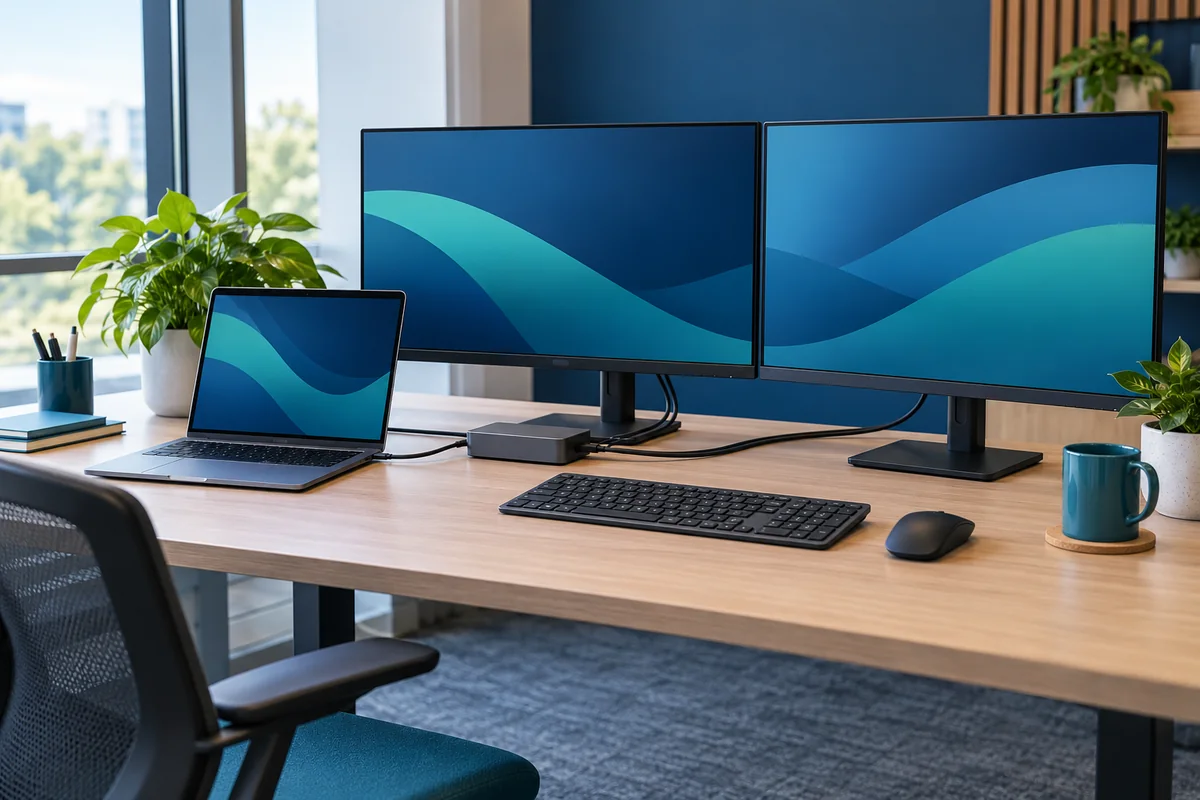
A practical worksheet can contain:
- Task and required peripheral
- Connection point and any approved adapter
- Application or operating-system selection needed
- Expected observable result
- Actual result, limitation and next action
This is a proposed office worksheet, not a manufacturer certification. Use the equipment vendor's guidance to decide the technical details of the test.
Check audio selection in the actual workflow
If the desk supports calls, use an approved test call with a colleague and non-sensitive conversation. Confirm the intended microphone and speaker are selected in the normal application. Ask the other person whether they receive the intended audio rather than relying only on a local indicator.
Microsoft's Surface Dock guidance notes that users can choose input and output preferences when multiple audio devices are available. That is a useful reminder to test selection, not just attachment. Other docks and applications require their own current instructions.
Record what happens after a normal reconnect. If the user must reselect a headset, document that step and decide whether it meets the business requirement. Do not quietly make an unsupported default-device change across every employee's computer.
Test input devices with ordinary tasks
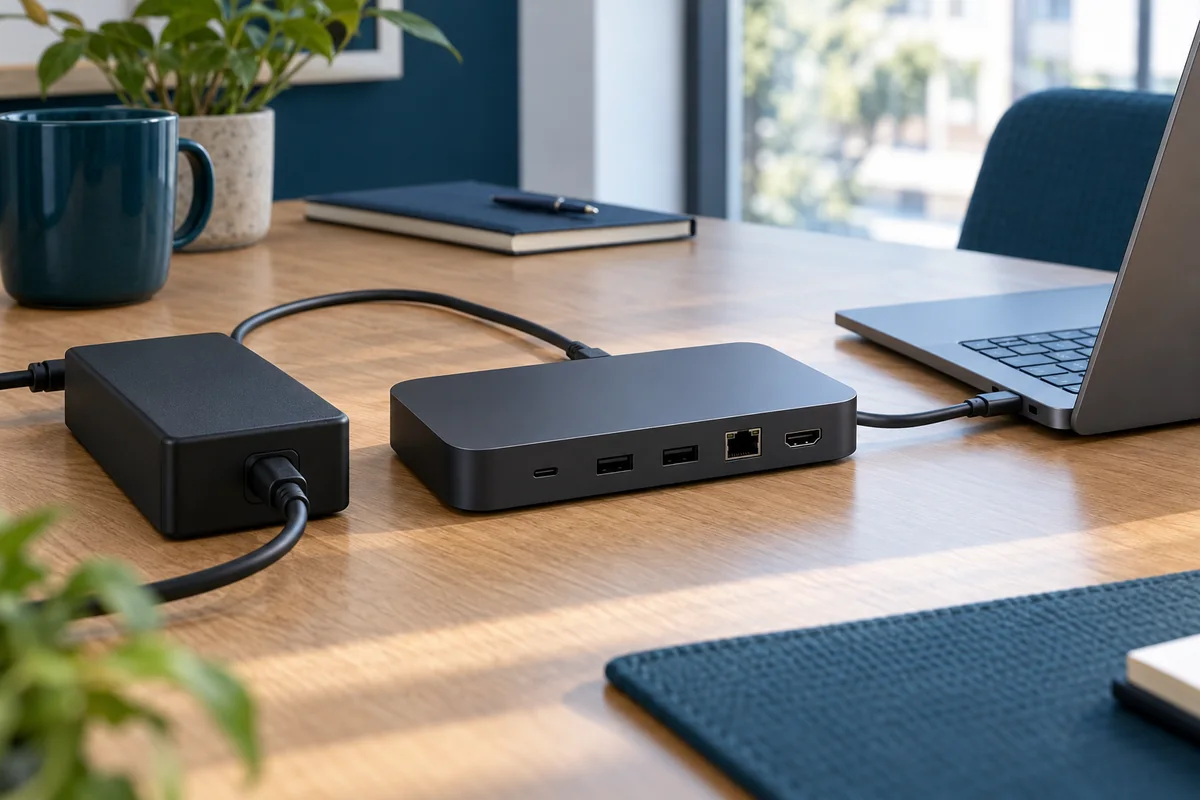
Use a sample document or test application to check required keyboard keys, pointer movement and any approved specialist controls. Include the actions that matter to the job rather than a random collection of clicks. Ask whether the equipment can be reached and used in its normal desk position.
If an accommodation or individual preference affects the setup, involve the appropriate employee and support owner discreetly. The shared equipment register does not need personal medical information. Record the required configuration and support responsibility without exposing the reason for it to everyone using the desk.
Keep network and storage tests bounded
If a wired connection is part of the approved desk standard, have IT confirm the intended connection and access under ordinary policy. Do not disable Wi-Fi, endpoint protection or access restrictions simply to force a desired result. A network icon alone does not prove the relevant business application can complete its task.
For approved external storage or other accessories, use the organization's existing handling rules and test material. Do not treat a dock trial as permission to attach an unknown drive. If the workflow depends on transfer performance, agree an appropriate test with the technical owner rather than promising a speed from the connector's label.
Capture failures so support can act
Distinguish “not detected,” “detected but unavailable in the application,” “available but unusable,” and “intermittent after reconnect.” Include the laptop, dock and peripheral identifiers plus the step at which the issue occurs. These observations narrow the investigation without claiming to diagnose the root cause.
Dell's setup guidance includes testing devices individually during troubleshooting. Follow model-specific instructions with support, and preserve the original connection record before any approved substitution.

Peripheral acceptance checklist
- Every required task has a named device and test.
- Tests use ordinary user access and harmless data.
- Audio is confirmed by the receiving participant where relevant.
- Reconnect behavior is recorded for required devices.
- Failures remain separate from passes and have an owner.
Combine the result with display acceptance and the staged pilot. The goal is a desk people can use, with limitations that support can explain, rather than a long list of devices that were merely plugged in once.
Editorial review: October 21, 2026. Check current manufacturer documentation for your exact equipment. The operational checklists are proposed planning aids, not a certification or compatibility guarantee.