
An office printer purchase starts with a deceptively simple question: which model should we buy? The more useful question is which recurring jobs the office needs to complete, under what conditions, and who will support the equipment afterward. A low purchase price cannot compensate for a missing paper size, an incompatible scanning workflow, or a machine that repeatedly stops the busiest person in the office.
Build a short requirements brief before requesting quotes. It gives suppliers something concrete to answer and gives your team a fair way to compare their recommendations.

Describe the work in observable terms
Ask the people who print and scan to collect examples over a representative working period. Include month-end work or another known peak. Use blank or invented documents when sharing samples outside the business.
Record these details for each important job:
- Document type, page size, and whether color is necessary
- Typical pages per job and jobs per week
- One-sided or two-sided output, stapling, envelopes, labels, or other finishing
- The application and device used to submit it
- How quickly the finished document is needed
- Whether it contains information that needs controlled collection
“Print board packets without someone feeding paper halfway through” is more useful than “buy a fast printer.” “Scan both sides into a searchable PDF” is more useful than “needs a scanner.” State how the office will judge success.
Separate essential requirements from preferences
Give each requirement one of three labels: essential, useful, or unnecessary. An essential item eliminates a candidate that fails it. Useful features can be weighed against price. Unnecessary features should not earn a model extra credit.
For example, automatic two-sided scanning may be essential for a document-heavy team, while color printing is only useful. A different office may require accurate color output but rarely scan. Do not assume an all-in-one device serves both equally well.
Use the volume and paper-handling guide to turn workload observations into capacity questions. Include available space, tray access, power requirements, noise expectations, and the route needed to deliver the machine.
Check the operating environment before the shortlist
List Windows and Mac versions, mobile devices, business applications, network arrangements, and any existing print-management system. Ask whether the proposed configuration works under the security settings your organization already uses.
Microsoft’s Windows Ready Print documentation describes its modern, driverless print approach for compatible devices. That makes current compatibility evidence more valuable than a generic “Windows supported” badge. Verify the exact model and required functions through a printer compatibility test.
If staff need scan-to-email, define the destination and delivery requirements separately. Our Microsoft 365 scan-to-email guide covers that decision; the presence of an email button on a copier does not establish that the business’s intended route will work.
Compare complete configurations
Request the exact model number, included trays, supplied consumables, installation scope, warranty, service coverage, and optional software charges. A quote for a bare printer is not comparable with one including an additional tray and on-site installation.
Use the same estimated workload and evaluation period for every option. The printer total-cost worksheet approach helps separate equipment, consumables, service, and recurring costs. ENERGY STAR’s imaging-equipment finder and buying guidance can also help compare certified models and relevant product attributes. Energy efficiency is one input; it does not establish workflow suitability.
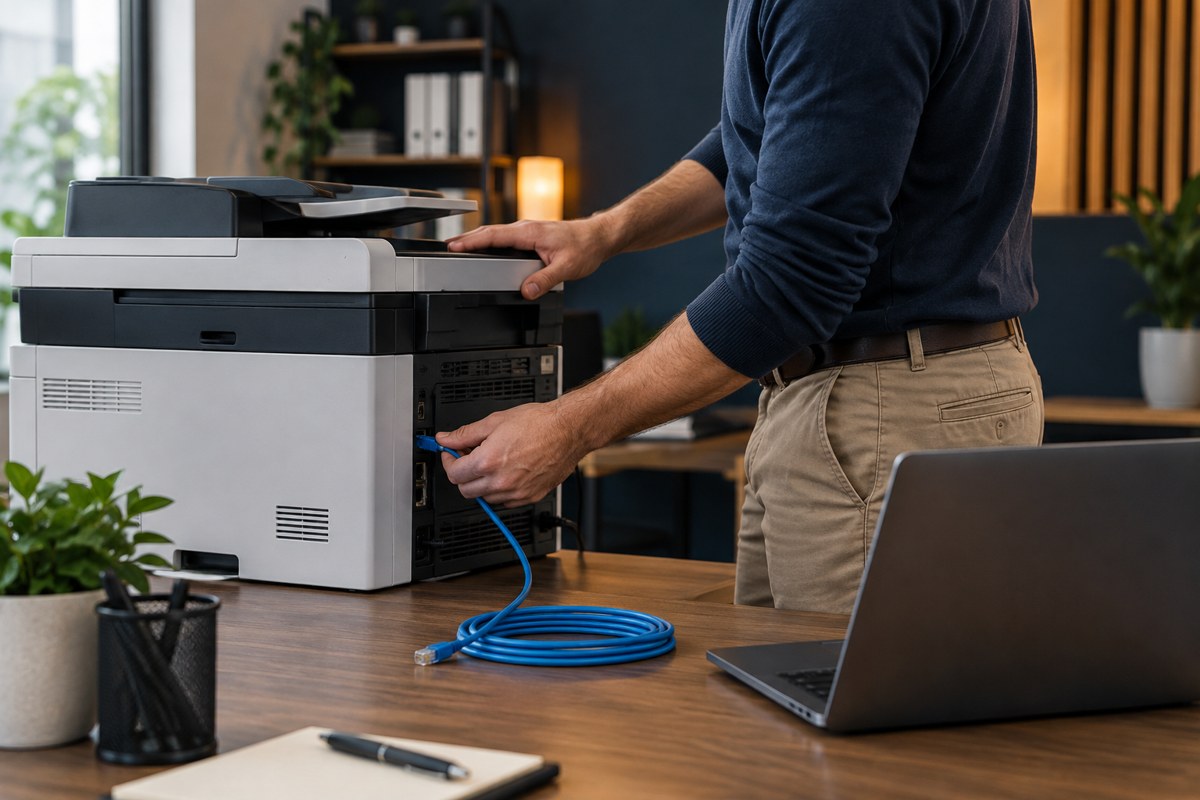
Require evidence for security and support
Before ordering, establish who manages firmware updates, access permissions, configuration records, and supplier escalation. Ask for the manufacturer’s support information and a clear explanation of what happens when a fault requires replacement parts.
Apply the printer-security buying checklist to administration, document handling, update support, and eventual retirement. A claim that a model is “business grade” is not an answer to these questions. Keep requirements proportionate to the documents and environment involved.
Arrange a demonstration using your representative sample jobs. If a supplier cannot demonstrate a required workflow before purchase, identify the unresolved risk and the applicable return or acceptance terms before committing.
Make acceptance part of the purchase
Agree in advance on who approves the installation and which tests must pass. Use the new-printer acceptance checklist to cover normal jobs, peak work, access, recovery, and handover documentation.
Your final brief should fit on a few pages: business jobs, essential capabilities, environment, cost assumptions, support responsibilities, and acceptance criteria. Keep the approved version with the quote so later changes are visible.
Your Expert Tech’s network and business-hardware services include printers and deployment support. Bring the requirements brief and current setup to a planning conversation so the discussion starts with the work your office actually needs to finish.
Sources and further reading
Editorial review: October 16, 2026. Photographs are AI-generated illustrations, not client installations. Verify current documentation and the quoted configuration before purchasing.