
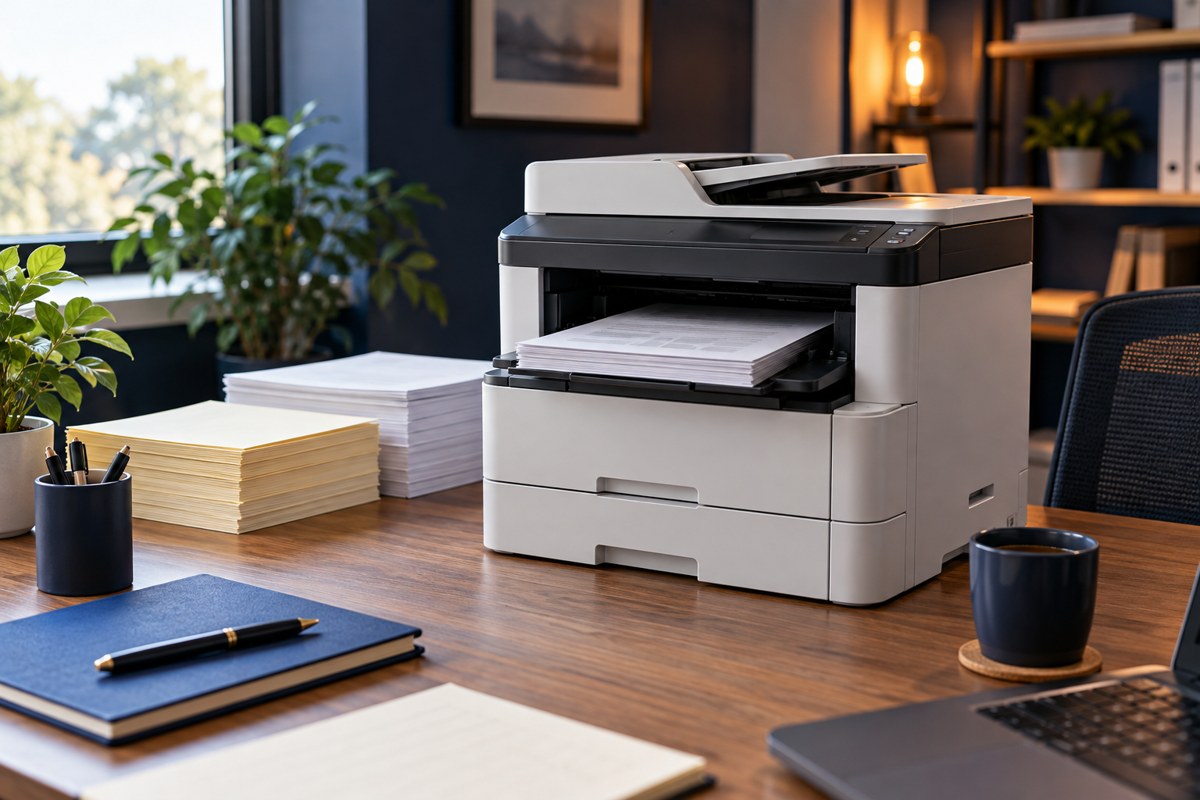
A printer may cope with an office’s average monthly volume and still frustrate everyone on the busiest morning. Capacity planning needs two views: the amount of work over time and the shape of the jobs that arrive together. Paper handling, scanning, and finishing can matter as much as the headline pages-per-minute figure.
Use this guide when completing your office-printer requirements brief. The goal is a defensible specification based on real work, rather than an arbitrary recommendation based only on employee count.
Measure output, not just headcount
Review meter readings or available print reports across a representative period. Record the start and end dates and establish what the counter measures. Separate monochrome and color where possible. Note copying as well as printing if both contribute to the device’s workload.
Add a short job diary for the work that causes queues:
- Largest routine job and how often it occurs
- Several simultaneous jobs that compete for the same printer
- Deadline-driven runs such as invoices or meeting packets
- Envelopes, labels, letterhead, or special-sized paper
- Scan batches and whether both sides must be captured
An office producing 2,000 sides monthly might spread them evenly or produce 600 on one afternoon. The same monthly total does not imply the same experience. Ask staff what they wait for and how they work around it.
Distinguish recommended volume from maximum duty cycle
Manufacturers may publish both a recommended monthly volume and a maximum duty cycle. Do not treat the larger number as a sensible continuous operating target. For example, HP’s product specifications explicitly distinguish a monthly maximum from the lower recommended ongoing volume.
Check the exact candidate model’s definitions and recommended range. Ask the supplier to explain how your typical workload and expected peaks fit those figures. A specification from another model in the same product family is not evidence for the quoted machine.

Translate peak jobs into paper handling
Consider an illustrative 300-side packet printed two-sided. If every sheet carries two sides, it uses 150 sheets before separators or special inserts. Check that the intended tray and output area can accommodate the job, and that the device supports the selected media in duplex mode.
Then ask what happens when another person submits a job requiring different paper. A second tray may reduce manual changes; it does not help unless the software selects the correct tray reliably.
Request exact specifications for:
- Standard and optional input capacity
- Output capacity and whether staff must clear completed jobs
- Supported media sizes, weights, and feed paths
- Automatic duplex restrictions
- Envelope and label handling
- Finishing options included in the quoted configuration
Test specialty media with manufacturer-approved materials. Incorrect labels or paper can create avoidable faults. Do not assume that a sheet which fits the tray is supported.
Evaluate scanning as a separate workload
An automatic document feeder’s capacity is different from the printer’s paper-tray capacity. Check whether it scans both sides automatically, what paper conditions it accepts, and whether the required software can produce the needed output format.
Use a numbered dummy batch with content on both sides. Confirm page order, orientation, readability, and the final destination. Include one realistic large batch rather than testing only a clean single page. If scan-to-email is required, use the existing dummy-document delivery test after the route is configured.
Time the work users actually perform
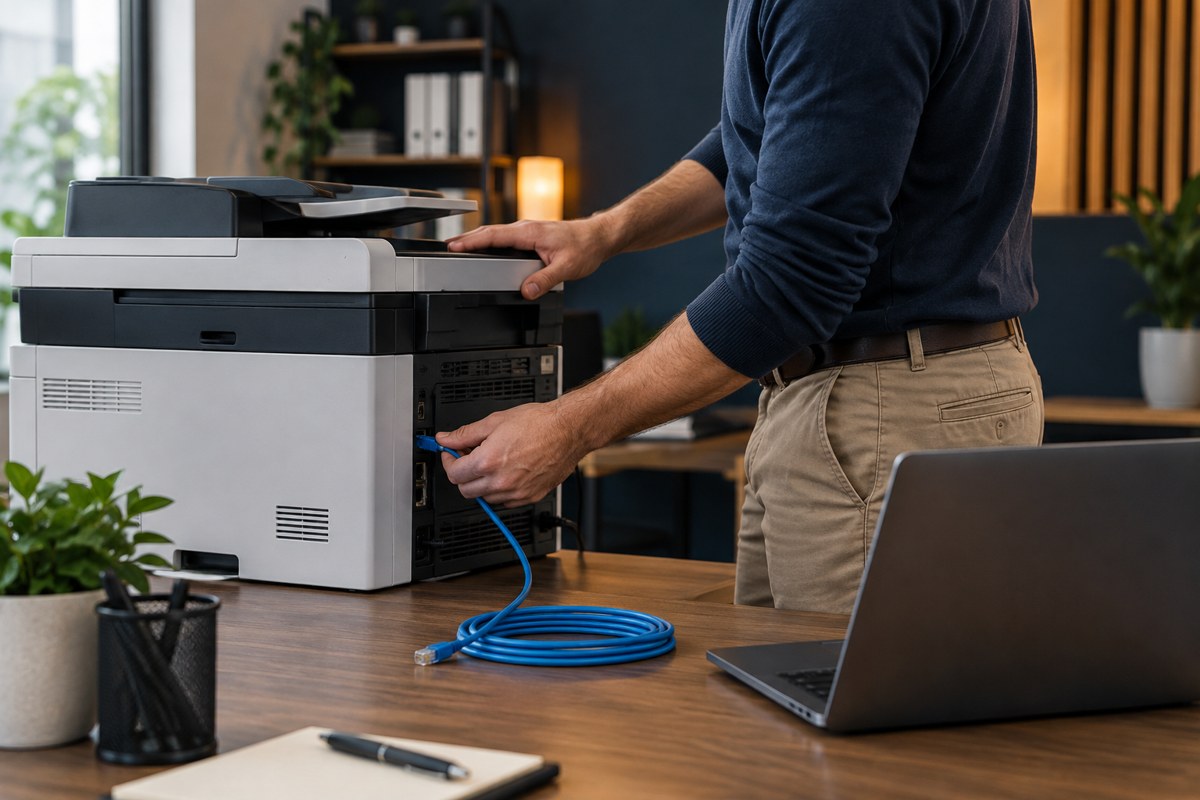
A rated print speed does not tell you how long a complete office task takes. Measure submission to finished output for a short job from sleep, a larger duplex job, and a representative document from the actual business application.
Include time spent loading media, releasing a secure job, clearing the output area, and dealing with finishing. Record the test conditions so two machines are compared fairly. The compatibility test guide helps ensure the demonstration uses the real software path.
Decide whether one machine is enough
Centralizing printing can simplify supplies and maintenance, but it also concentrates interruptions. Decide what the office will do during a fault or maintenance visit. A second device is justified by a real continuity need, not by a universal printer-to-person ratio.
Carry the chosen capacity and accessories into the total-cost comparison. Then include the peak-job test in the installation acceptance checklist. This keeps the buying decision, quote, and final signoff connected.
Sources and further reading
- HP: example specifications distinguishing duty cycle and recommended volume
- ENERGY STAR: imaging-equipment product finder and buying guidance
Editorial review: October 16, 2026. Photographs are AI-generated illustrations, not client installations. Verify current documentation and the quoted configuration before purchasing.