
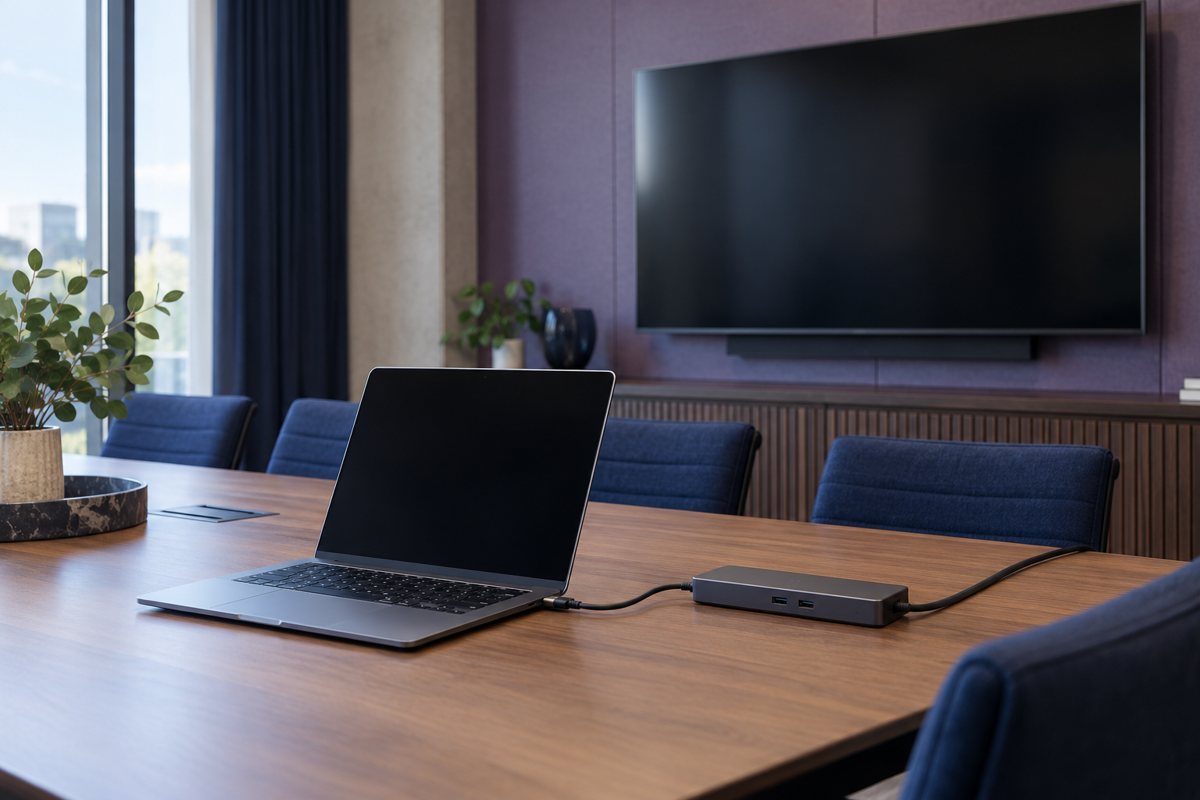
A USB-C connector describes the shape of a connection, not a promise that every laptop, cable, dock, and display will perform the same functions. In a meeting room, treat charging, display output, camera access, and audio as separate capabilities. Test the exact chain people will use before advertising a single-cable experience.
Use this checklist for supported equipment already approved by your organization. It is not a reason to install an unknown driver, bypass a device restriction, or connect an untrusted accessory. The wider room readiness guide explains how the connection fits into the room's operating model.
Identify the chain without changing it
Record the laptop model and operating system, the specific port used, the cable, the dock or adapter, the display, and attached peripherals. Photograph the physical connection with no sensitive screen content if that helps your support team. Keep the equipment model information with the room record rather than relying on memory.
Microsoft's USB-C troubleshooting guidance describes how support for charging, alternate modes, cables, and connected devices can differ. Use the manufacturer's documentation for the actual model when deciding which port or cable is intended for the job.
Make a simple capability list:
- The laptop receives the intended power while working
- The room display shows the expected desktop or presentation
- The meeting application detects the room camera
- The intended microphone and speaker appear as selectable devices
- Any approved network connection works under the normal policy
A successful result for one item does not establish the others. A screen can work while the camera remains unavailable, and a charging icon does not prove the supply is sufficient for the intended workload.
Test representative host devices
Choose at least one device from each supported laptop configuration used by your staff. If Windows and Mac hosts are both required, test both with their approved software and restrictions. Do not base the room's promise on a technician's unrestricted device alone.
For each host, connect through the ordinary user-facing cable. Select the expected devices in the meeting application, then have a remote colleague confirm camera and audio behavior. Keep the audio test results separate from the connection result: detecting a microphone is not proof of clear speech at every seat.
Exercise the transitions people actually make
Test arriving with the laptop awake, returning from sleep, disconnecting at the end, and connecting the next person's supported laptop. Where the organization's workflow requires it, test reconnecting after an ordinary restart. Note whether the application returns to the correct devices or requires manual selection.
Use a dummy presentation to compare the room display with the remote participant's view. A local external monitor working does not mean screen sharing has started. Ask the remote tester to read a harmless detail so the team knows which content is reaching them.
Keep a known working cable with the room
Once a configuration passes, identify its room cable in a way staff can recognize without exposing account information. Record the cable and adapter model or specification in the support inventory. Keep any spare matched to the tested requirements rather than choosing it only because the plugs fit.
Route connections so normal chair movement and laptop placement do not pull them tight. Ask facilities or the installer to resolve trip hazards, inaccessible connections, or mounting problems. Do not improvise wiring through walls or alter electrical arrangements as part of a user-level test.
Diagnose a failure with evidence
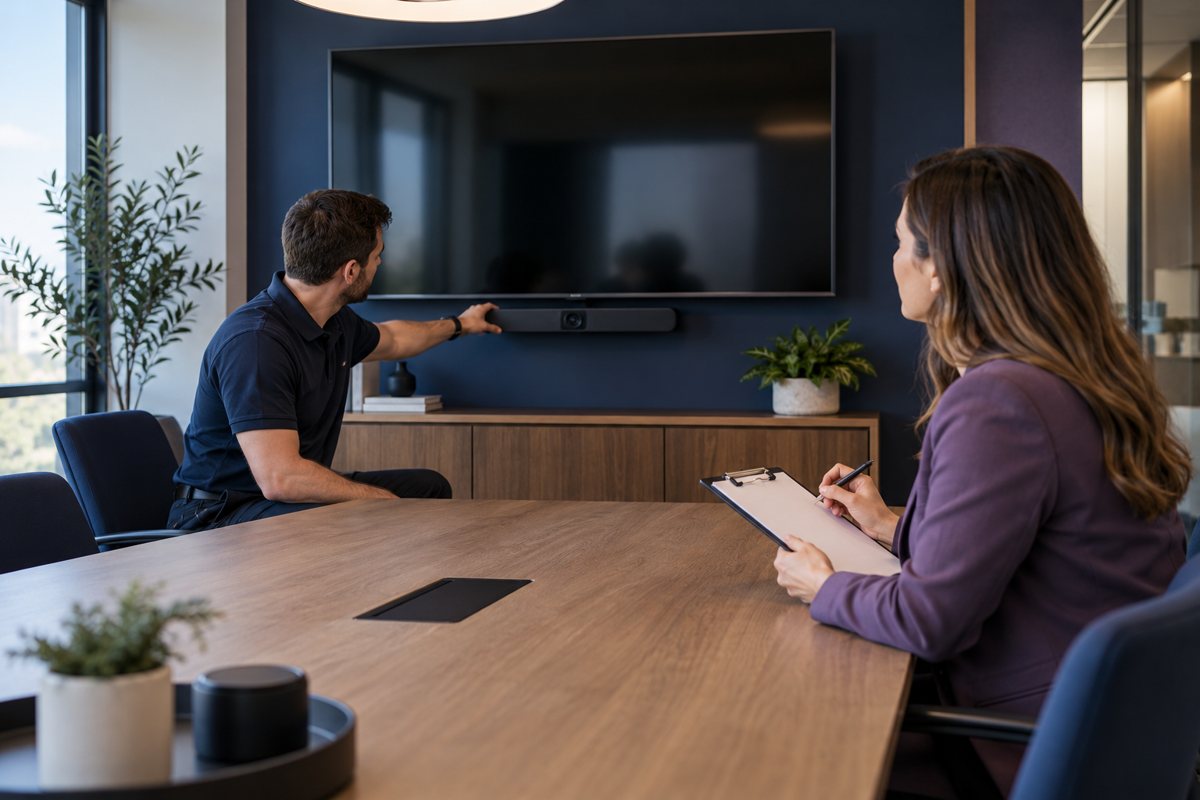
When a function stops working, record what changed and the exact symptom. Does the camera disappear from the application? Does the display fail only on one laptop? Does reconnecting restore it? Send the support team these observations together with the tested device and cable information.
Change one approved component at a time and repeat the failed test. If a different cable resolves the issue, do not discard the original evidence or conclude that every replacement cable is suitable. Update the room's supported configuration only after the replacement passes the required functions.
State the supported boundary clearly
The final room card should say which connection to use and where to get help. It should not promise universal compatibility. Visitor devices that have not been tested may require a separately approved joining method.
Add the connection record to the acceptance and handover package. Pair it with the host startup checklist so users can select the intended devices after connecting. A documented boundary is more useful than a broad claim that fails during a customer meeting.
Editorial review: October 17, 2026. Images are original AI-generated illustrations. Check current product documentation and your approved room configuration before changing settings.