
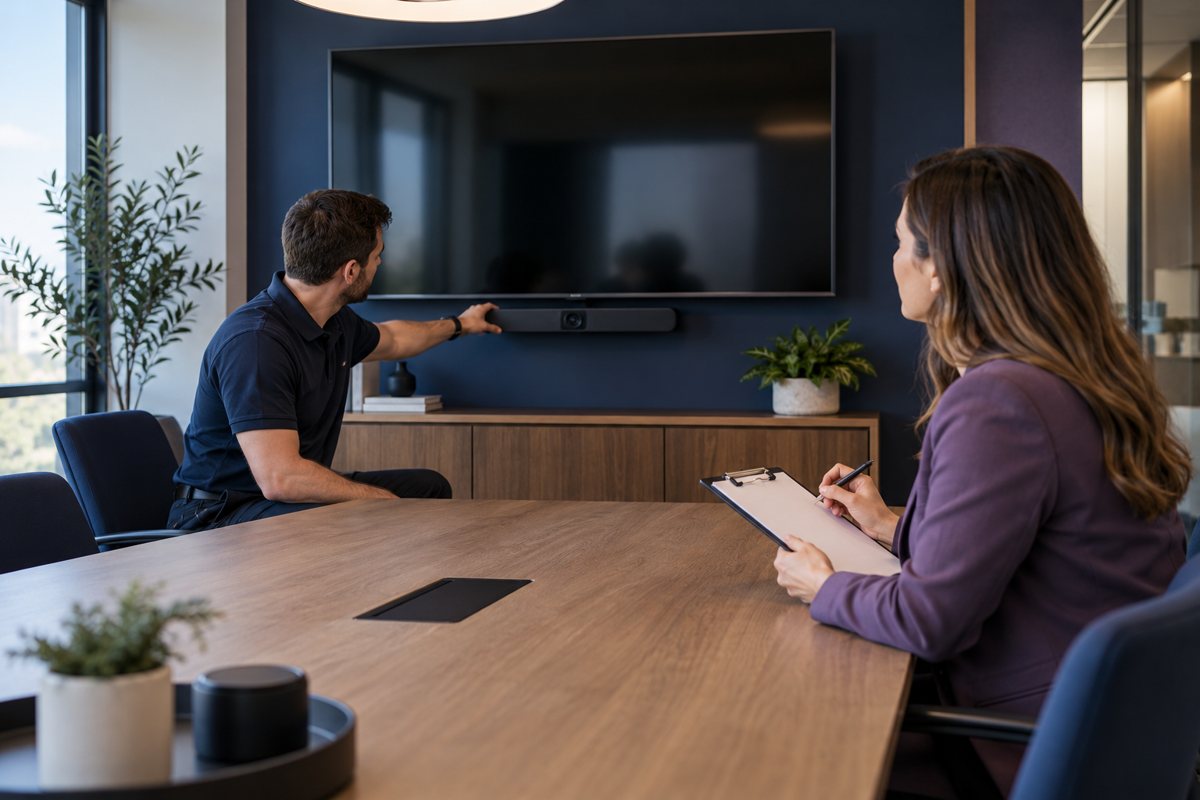
A meeting-room installation should end with a demonstrated working setup, a list of limitations, and an owner for ongoing support. A delivery note proves equipment arrived. A successful call on one person's laptop proves only that particular test worked. Acceptance should connect the room's promised uses to recorded results.
Use this practical checklist alongside the agreed supplier scope. It does not change contract terms or replace specialist commissioning. The room readiness guide helps create the requirements against which this handover can be judged.
Freeze the test configuration
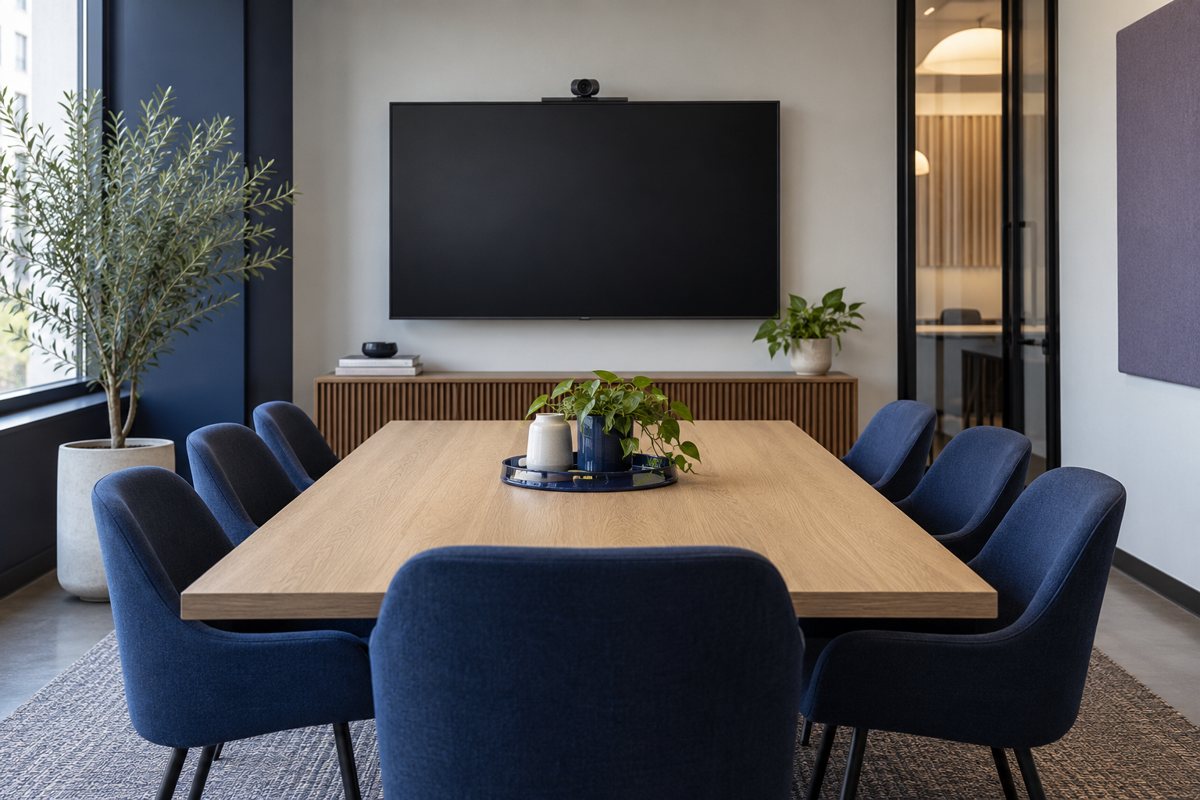
Record the room name, seating layout, host model, operating system, application, display, camera, audio equipment, and connection path. Include versions or configuration references where your support team needs them. Keep passwords, recovery codes, and private meeting invitations out of the handover document.
List the meeting types being accepted: internal discussion, external platform calls, shared slides, video playback, or another defined use. Mark anything outside the scope as not tested. Do not turn silence in the test record into an implied guarantee of compatibility.
Microsoft's Teams Rooms planning guidance treats ongoing operation and user adoption as part of deployment. For a small office, that means the handover needs both technical evidence and instructions ordinary hosts can follow.
Run a task-based acceptance session
Use non-confidential material and a remote colleague. Work through the normal meeting from arrival to departure rather than demonstrating each component in isolation.
- Start through the approved host or room-system path.
- Confirm speech in both directions from all intended seats.
- Check camera coverage under recorded lighting conditions.
- Share a document and confirm its remote view.
- Test media sound if it is an agreed requirement.
- Disconnect and let another supported host start a new session.
- End the session and restore the room's ready state.
Use the audio test, camera check, and connection checklist for detailed observations. Keep their results attached rather than replacing them with a single “pass” checkbox.
Record failures in a way someone can act on
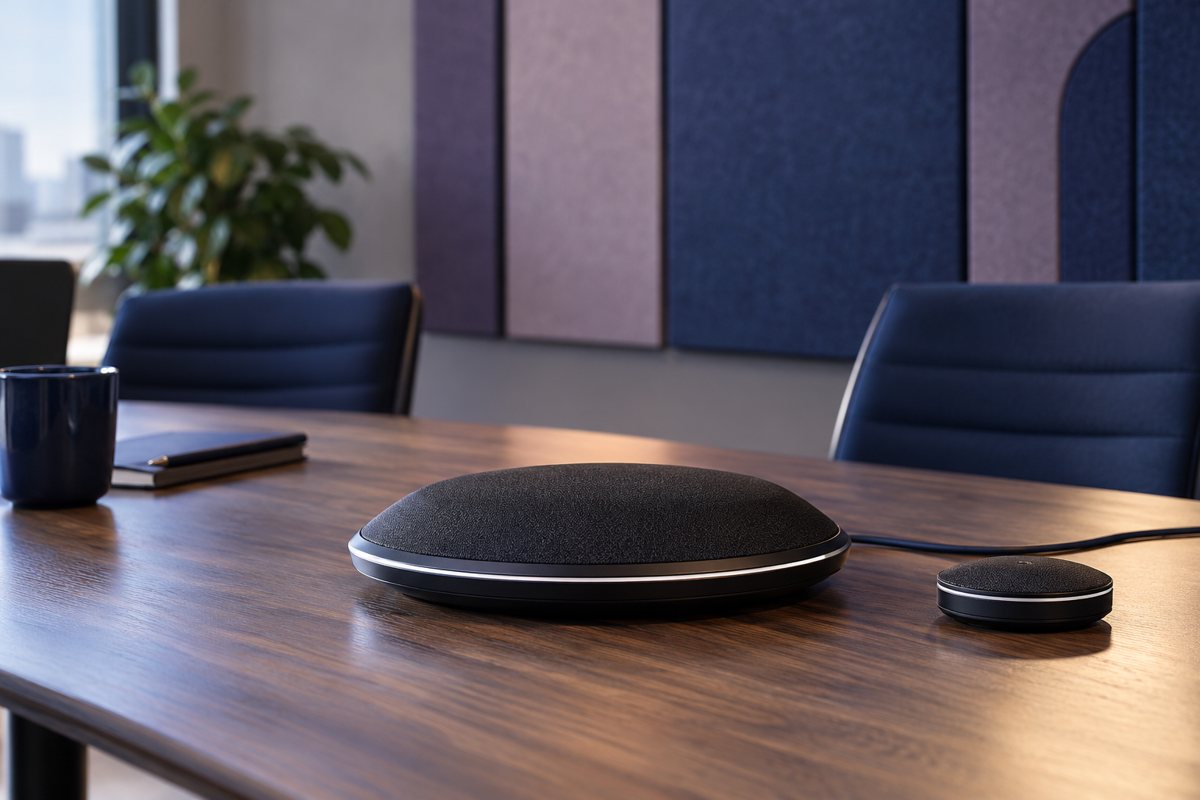
Each failed or incomplete item needs a plain description, the affected use, an owner, and a proposed retest. “Camera issue” is too vague. “The two far seats are outside the frame in the agreed layout” explains why the result matters.
Distinguish a fault from an unsupported request. If an unlisted visitor laptop fails, that may expose a new requirement rather than a defect in the accepted configuration. Either way, document the decision so the next person does not inherit an unexplained limitation.
An illustrative acceptance record might say: “Internal calls and slide sharing passed on the two approved laptop models; video playback on the second platform remains untested.” That is an example of useful wording, not a claim about a real installation.
Test the handover without the installer leading
Give the host startup card to an authorized employee who did not configure the room. Ask them to start a dummy meeting, share a document, and finish. Observe which steps require help, then revise the card and repeat the affected steps.
Include accessibility needs identified in the room brief. Ask the relevant users or responsible accessibility lead how the intended workflow should be tested. A technically functioning device does not by itself establish that the room works for every participant.
Assign support responsibilities
Write down who owns routine user assistance, hardware faults, software updates, network issues, and physical-room changes. Give employees one clear reporting route, with the room identifier and the details support needs. Where a supplier is involved, keep the agreed support scope and contact route with the internal owner.
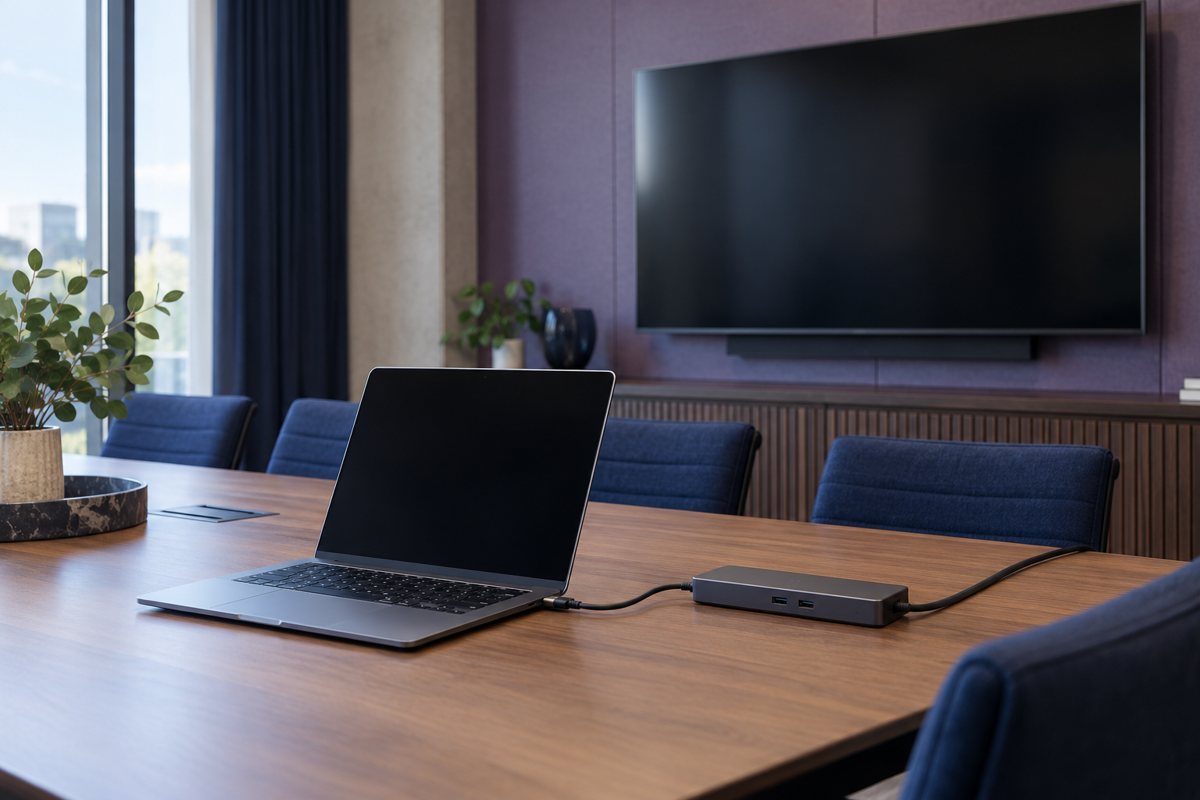
Record the exact spare cable or adapter that has been tested, equipment ownership, warranty references, and the location of configuration documentation. Do not include secrets in an openly accessible room guide. Restricted administrative records should remain in the organization's approved storage.
Decide what triggers another test
Retest the affected workflow after a camera or dock replacement, a change in seating, a major application change, or a repeated complaint. A small documented check after a change is more useful than relying indefinitely on the original commissioning date.
Close acceptance with the approver's name, date, supported uses, outstanding items, and the next review trigger. Your Expert Tech's IT consulting services can help clarify business requirements and supplier responsibilities; confirm the exact technical scope before work begins. The goal is an understandable supported room, not a record that makes unresolved work disappear.
Editorial review: October 17, 2026. Images are original AI-generated illustrations. Check current product documentation and your approved room configuration before changing settings.