
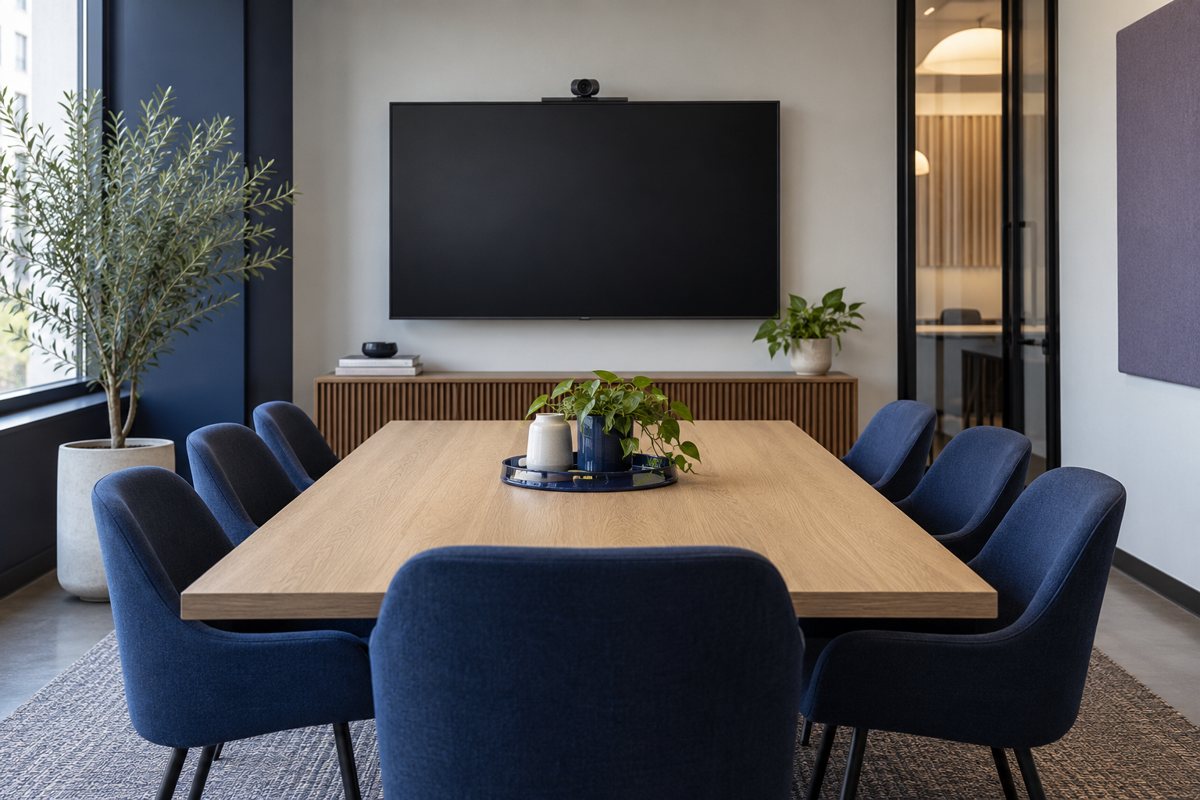
A meeting room is ready when the person arriving next can join, hear, speak, and share the intended material without reconstructing the equipment setup. A bright display and an expensive camera do not establish that outcome. For a small office, the most useful starting point is a room brief and a repeatable test, not a shopping list.
This guide covers ordinary small-business collaboration rooms. Dedicated Microsoft Teams Rooms systems have their own supported configurations, licensing, and administration requirements. A personal laptop connected to peripherals is a different operating model; do not assume that turning a shared computer into a room device avoids the applicable licensing rules.
Define the meetings the room must support
List the real meeting patterns before selecting equipment. A four-person project review differs from a training session with people moving around the room. External customer calls may use a different platform from internal calls. A room that works for conversation may still fail when a presenter needs to play a video or show a detailed spreadsheet.
Write a short brief with these fields:
- Maximum seated attendance and the places people actually use
- Required meeting platforms and who normally hosts
- Personal-laptop or dedicated-room-system operation
- Shared material: slides, spreadsheets, video, or physical objects
- Accessibility needs and the process for arranging accommodations
- Who supports the room and who can approve changes
Keep desired capabilities separate from essential ones. “Remote participants can understand a person speaking from the far seat” is testable. “Professional audio” is not a useful acceptance criterion by itself.
Map the whole connection path
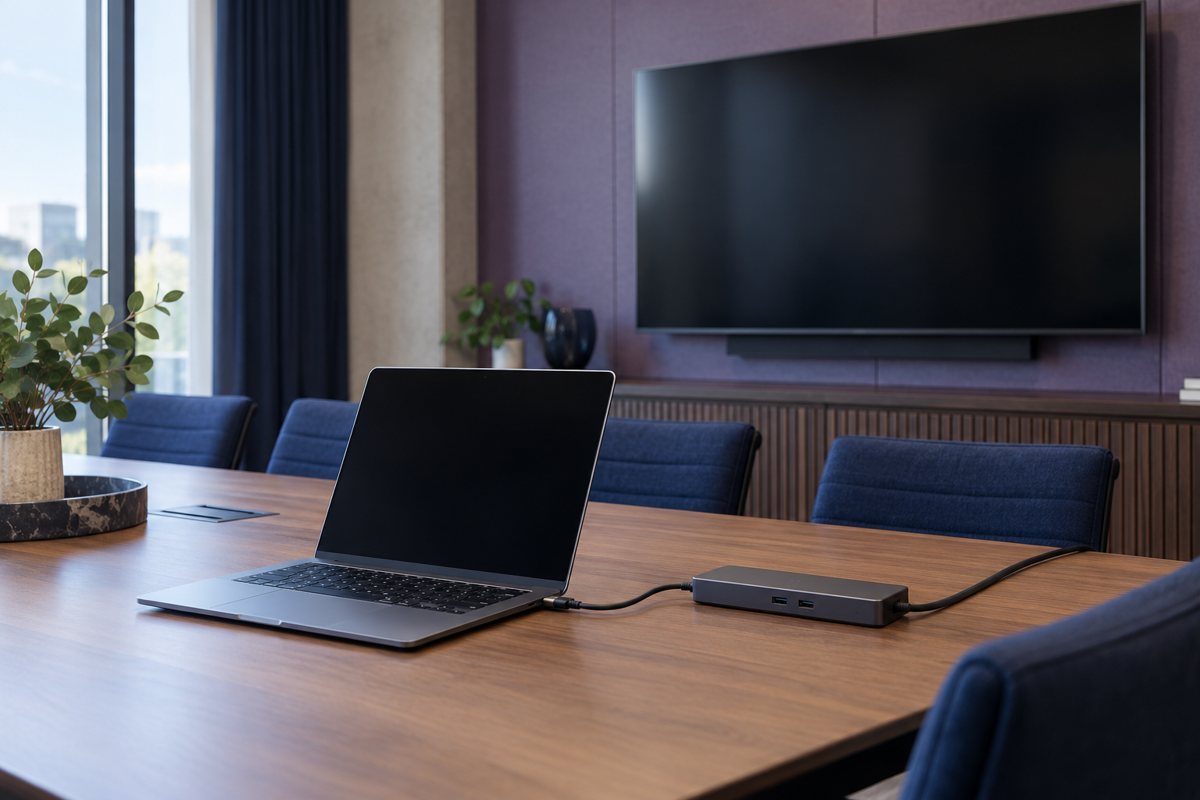
Draw the path from the host device to the microphone, speaker, camera, display, and network. Mark which connections are permanent and which a visitor must make. Record exact equipment models and supported host devices, not just “USB-C laptop.”
Use the USB-C room connection checklist to check display output, peripheral access, and charging separately. A plug fitting a socket does not prove that every required function is supported. Keep unsupported visitor devices outside the promised room capability until tested.
Test the remote participant's experience
Someone in the room may hear every speaker clearly while an online participant hears distant or broken speech. Arrange a test with a colleague in a separate location. Have them describe what they can hear and see rather than asking only whether the room “works.”
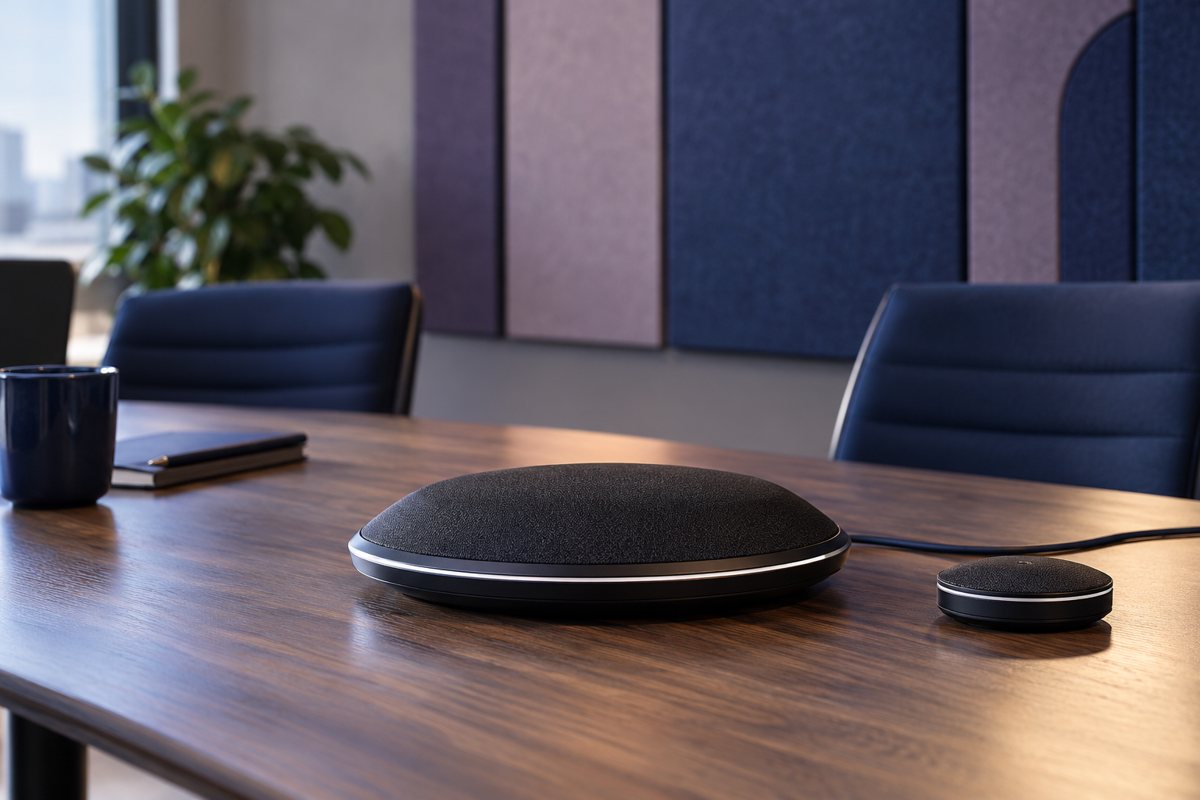
Follow the meeting-room audio test for seat coverage and competing sound paths. Use the camera and lighting check for framing and daylight conditions. These are separate investigations: replacing a camera will not resolve unclear speech.
Microsoft's room-planning guidance provides context for matching the physical room to the meeting experience. Use its product-specific guidance where relevant, while keeping your own acceptance brief tied to the intended room and equipment.
Make starting the meeting a supported workflow
Choose one ordinary host procedure and document it beside the equipment. The procedure should identify the approved connection, the intended microphone and speaker, how to share content, and how to end the session. It should not contain passwords or private meeting links.
The host startup checklist helps turn this into an easy handoff. If people need administrator access or an unplanned download to start a routine meeting, the room is not ready for that workflow. Resolve the setup with IT before promising it to users.
Assign room ownership beyond installation
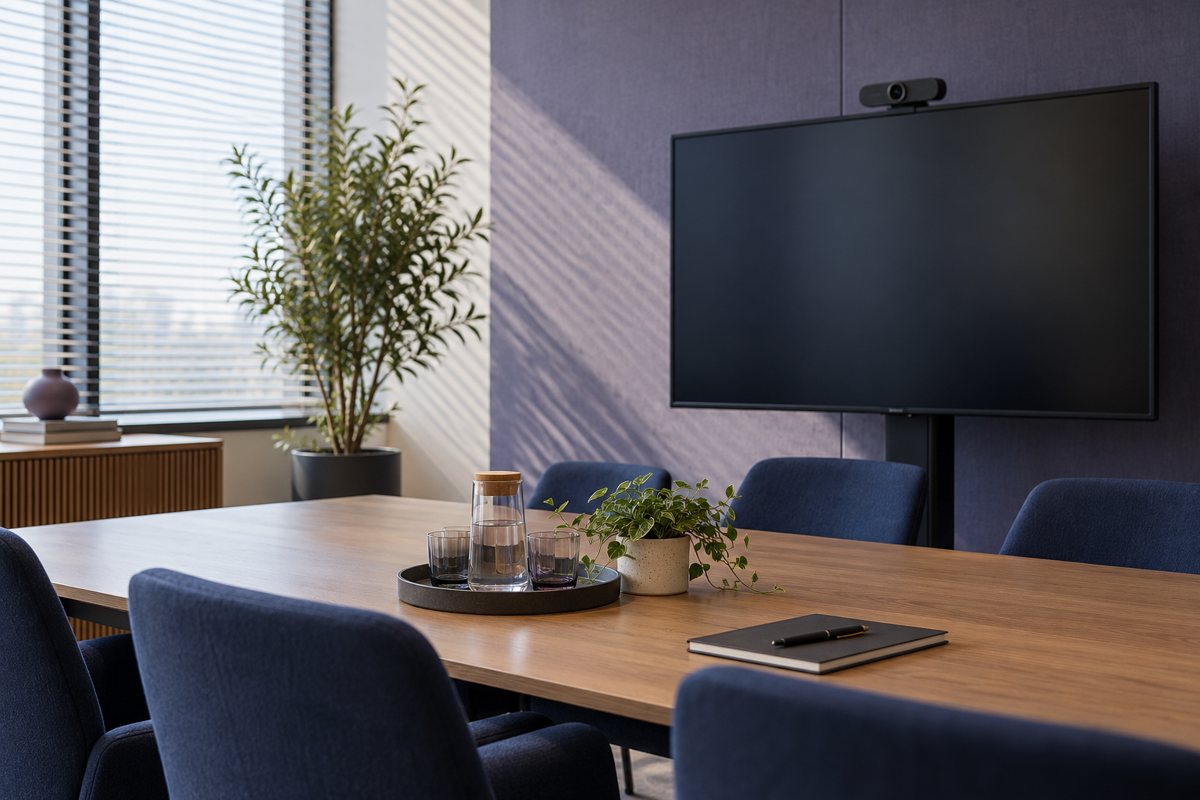
Separate facilities tasks from IT tasks. Furniture, glare, background noise, cabling routes, software configuration, and booking instructions may have different owners. Give staff one reporting route even when several suppliers are involved behind it.
Microsoft's Teams Rooms planning documentation distinguishes planning, deployment, and ongoing operation. For your office, turn that lifecycle into named responsibilities: who tests after updates, who replaces missing cables, and who tells users about a temporary limitation.
Accept the room against recorded evidence
Use the meeting-room acceptance and handover checklist before calling the installation complete. Record the tested configuration, failures, restrictions, and the person approving normal use. A successful demonstration on a technician's laptop is not evidence that every office laptop works.
Recheck the affected tests after equipment replacement, furniture changes, major software changes, or a recurring user complaint. Keep a known working configuration so support can distinguish a new fault from a changed setup.
Your Expert Tech's network and business-hardware services and IT consulting can help organize requirements and responsibilities. Ask about the specific room scope before assuming a specialist audiovisual installation is included. A clear brief makes that conversation more productive.
Editorial review: October 17, 2026. Images are original AI-generated illustrations. Check current product documentation and your approved room configuration before changing settings.